
 Astroworld
Getting started
Minecraft hosting account settings: email, password and two-factor login
Your account holds your servers and your payment details, so it is worth two minutes to protect it well. Everything on this page is under Account in the client area.
In short
All account settings are under Account in the client area. Change your email under Email Address and click Save changes, change your password under Change Password with your current one, and turn on two-factor login under Two-Factor Authentication with Set up 2FA and a code from an authenticator app. Save the eight backup codes it gives you: each one gets you in once if you lose your phone.
Open your Minecraft hosting account settings
Sign in and click Account in the menu on the left of the client area. On a phone, open the menu first.
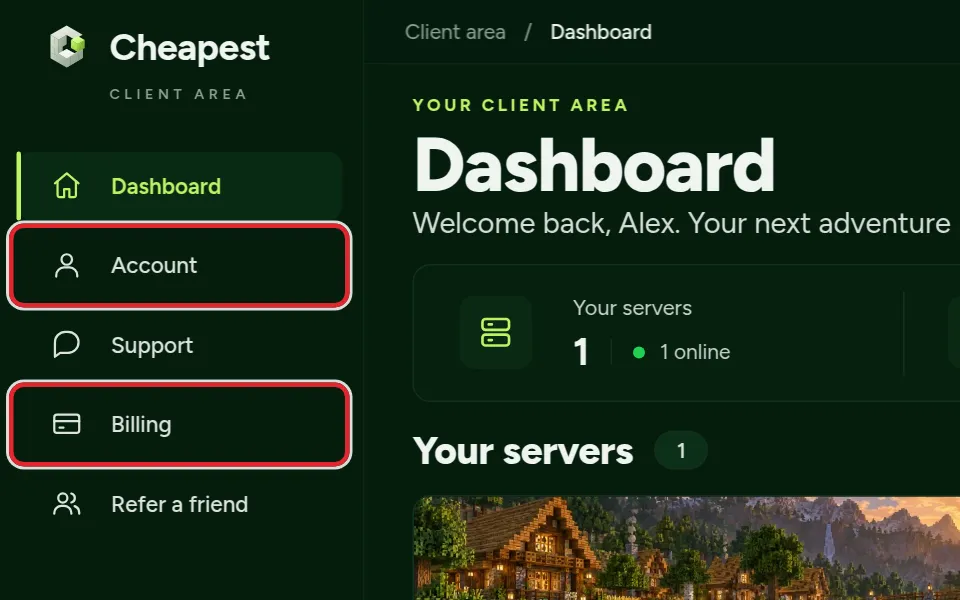
When you change your name or email address, a bar appears at the bottom of the page. Click Save changes there, or Reset to go back to what was saved.
Everything on the Account page at a glance
| Card | What you do there |
|---|---|
| Display Name | The name on your account |
| Email Address | The address you sign in with, where invoices and messages go |
| Change Password | A new password, after typing the current one |
| Personal or business | Company name, country and VAT number for your invoices |
| Billing portal | Invoices, payment methods and billing details |
| Two-Factor Authentication | A code from your phone on top of your password |
| Danger Zone | Deleting the whole account |
Inside the panel of a server, the account menu in the top bar has Profile and Login & security, which open these cards, and Log out. The Account tab in the panel menu can change your password too, and shows the subscription of that server.
Change the email address of your Minecraft hosting account
- Under Email Address, type the new address.
- Click Save changes in the bar at the bottom of the page.
- Open the email we send to the new address and confirm it, if asked.
From then on you sign in with the new address, and invoices and messages about your server go there.
Change your Minecraft hosting account password
- Under Change Password, type your current password.
- Type the new password twice. It needs at least 8 characters.
- Click Change Password.
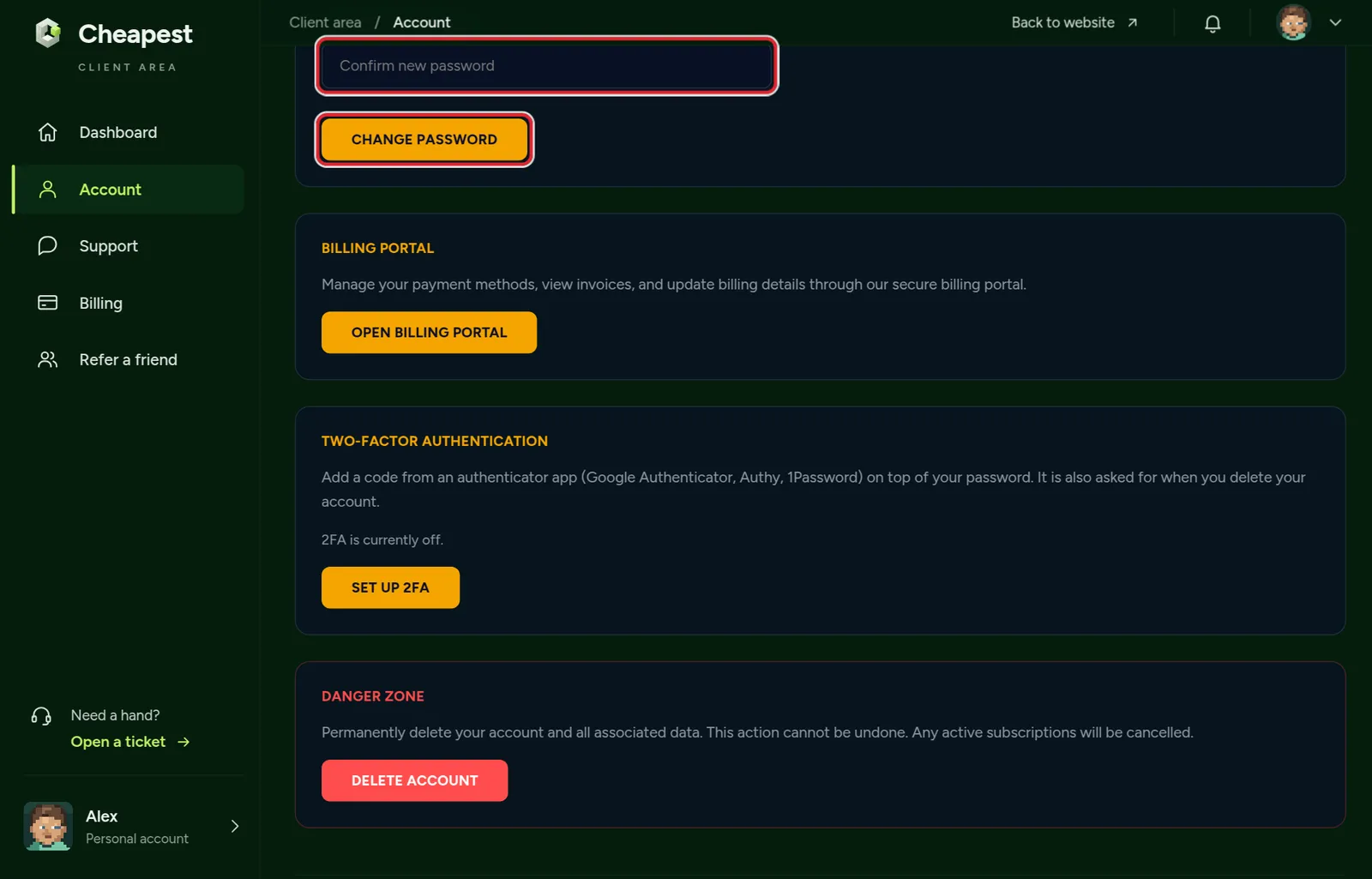
Do not know your current password? Sign out and use Forgot password? on the sign in page. Create an account and sign in shows each step.
Account page messages and how to fix them
| Message on the page | The fix |
|---|---|
| Careful, you have unsaved changes! | Click Save changes in the bar at the bottom, or Reset to undo |
| Passwords do not match. | Type the new password the same way in both fields |
| Password must be at least 8 characters. | Pick a password of 8 characters or more |
| Current password is incorrect. | Check the current password, or use Forgot password? on the sign in page |
| This email is already in use. | Another account has that address; pick another one or sign in to that account |
| Please provide a valid email address. | Look for a typo or a space |
| Email updated. You may need to re-verify your new address. | Open the email sent to the new address and confirm it |
| Password updated successfully. | Done; sign in with the new password from now on |
Your hosting account and your Minecraft account are not the same
The account on this page manages your server: the panel, the billing and the staff. The Microsoft account you play Minecraft with is a different one. Changing the password or email of one never changes the other, and we never need your Microsoft login to run your server.
Give the two different passwords. Then a leak of one opens nothing else, and a friend who knows your gaming login still cannot touch your server.
Turn on two-factor login for your Minecraft server account
With two-factor login, signing in needs a six digit code from your phone on top of your password. Someone who learns your password still cannot get in. You need an authenticator app, such as Google Authenticator, Authy or 1Password.
- Under Two-Factor Authentication, click Set up 2FA.
- Scan the QR code with your authenticator app, or type the code under it into the app by hand.
- Type the six digit code your app now shows in Code from your app and click Confirm and turn on.
- Eight backup codes appear. Save them somewhere safe, away from your phone, and click I saved these, done.
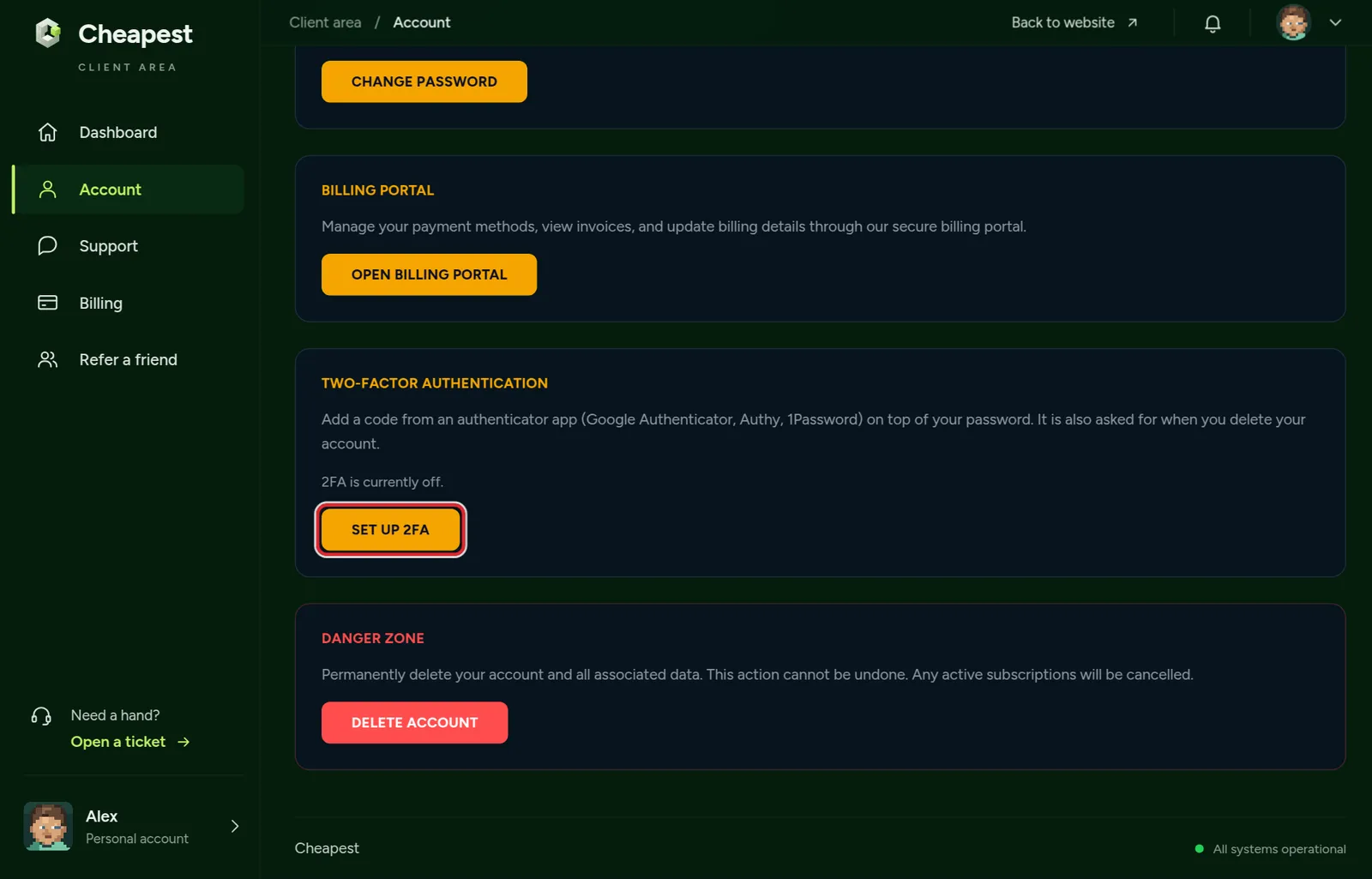
The backup codes are shown only once. Each one gets you in one time when your phone is lost, broken or wiped. Print them, or keep them in a password manager.
From now on, signing in asks for the code after your password. The code also protects your account when you delete it.
What two-factor login protects besides signing in
Once two-factor login is on, the code is asked for at every step that could lock you out or wipe your work:
| Action | What it asks for |
|---|---|
| Signing in | Your password, then the code from your app |
| Turning two-factor login off | Your password and a current code, or a backup code |
| A fresh world or a wiped server on the Reset tab | Your two-step code, or a backup code |
| Deleting your account | A code from your email, your password and a code from your app or a backup code |
Without two-factor login, the Reset tab stops at Turn on two-step verification in your account first. A reset needs it. So turning it on is also what lets you start over with a fresh world.
Where to keep your two-factor backup codes
| Place | Good idea? |
|---|---|
| On paper, at home | Yes; nobody online can reach it |
| A password manager, in its own entry | Yes, if the manager itself has a strong password |
| A photo or a note on the phone with the app | No; lose the phone and both are gone |
| An email to yourself | No; whoever gets into your email gets them too |
A used code is gone for good, so cross it off. With only one or two left, switch two-factor login off and set it up again: you get a fresh set of eight, and the old ones stop working.
Move two-factor login to a new phone
- Keep the old phone at hand: you need one more code from it.
- Sign in, open Account and click Turn off 2FA under Two-Factor Authentication. Type your password and the current code from the old phone.
- Click Set up 2FA and scan the new QR code with the authenticator app on the new phone.
- Type the code from the new phone, click Confirm and turn on and save the eight new backup codes.
- Delete the old entry from the app on the old phone before you reset or sell it.
Some authenticator apps can carry their codes over to a new phone by themselves. Setting it up again as above works with every app, and gives you fresh backup codes as well.
Two-factor login for your staff
Everyone you add under Staff signs in with an account of their own, and that account can reach your server too. Ask each of them to turn on two-factor login under Account the same way. A staff account without it is the easiest way in for someone who should not be there, and without it they cannot use the Reset tab either.
Give someone access to your server shows how to invite staff and choose what they may do.
Lost your phone? Get back into your Minecraft server account
- Sign in as usual. At the code step, type one of your backup codes instead of the code from the app.
- Once in, turn off two-factor login and set it up again on your new phone. You get eight fresh backup codes.
- Turning it off needs the same proof as turning it on: your password and a current code, or a backup code.
- No phone and no backup codes? Email [email protected] from the address on your account and we help you get back in.
Think someone else got into your account?
- Change your password under Change Password right away, to one you have never used anywhere else.
- Change the password of your email account too, because a reset link for this account goes there.
- Turn on two-factor login, or set it up again if it was already on.
- Open the Activity tab of each server and look for changes you did not make.
- Check the Staff tab of each server and remove anyone you do not know.
- Tell us what you saw through the support page.
Delete your Minecraft hosting account
Under Danger Zone you can delete your account for good. This cancels every subscription and removes all your servers and their files. It cannot be undone.
- Download anything you want to keep from your servers first.
- Click Delete Account and read the warning.
- We send a code to your email. Type it in, together with your password and, with two-factor login on, a code from your app.
- Click Yes, Delete My Account.
Only want to stop one server? Cancel it in the billing portal instead and keep your account. Billing and invoices explains how.
Before you delete your Minecraft hosting account
- Download every world you want to keep first; the steps for that are in back up and restore your server.
- Download the invoices you need for your records from the billing portal, because the portal goes with the account.
- Make sure you can still read the mailbox of your account: the code that confirms the deletion is sent there.
- Every active subscription is cancelled and all server data is removed, so friends who play on your servers lose them too.
The last screen asks one more time: Are you absolutely sure? This will permanently delete your account, cancel all subscriptions, and remove all server data.
Questions from Minecraft server owners
Is two-factor login required for my server account?
No, it is your choice. We do recommend it: it is the one setting that keeps your server safe even when your password leaks somewhere else.
Which authenticator app should I use for two-factor login?
Any app that shows six digit codes works, such as Google Authenticator, Authy, 1Password or the one built into your password manager.
I lost my backup codes for two-factor login. What now?
While you can still sign in, turn two-factor login off and on again. That gives you eight new codes and makes the old ones useless.
Will you or Minecraft server support ever ask for my password or codes?
Never. Not in a support case, not by email and not in chat. Anyone who asks for them is not us.
Is my hosting account the same as my Minecraft account?
No. The hosting account manages your server, and your Microsoft account is what you play with. Changing the password or email of one does not change the other.
How do I move two-factor login to a new phone?
Before you reset the old phone, turn off 2FA under Account with your password and a code from the old phone. Then set it up again on the new phone and save the new backup codes.
Can I turn off two-factor login without my phone?
Yes, with a backup code. Turning it off needs your password and either a current code from the app or one of your backup codes.
Why does the Reset tab ask me to turn on two-step verification?
A reset wipes a world or a whole server, so it needs your two-step code. Turn on two-factor login under Account first, and the Reset tab works.
Can I change my password from the server panel?
Yes. The Account tab in the panel menu has Change password. You need your current password for it.
Checked step by step in our client area, September 2026. Written by the Cheapest Minecraft Hosting team, first published , updated .