
 Astroworld
Getting started
Your Minecraft server control panel: a quick tour
You manage your server in two places. The client area is your account: your servers, invoices and support cases. The control panel is one server: its console, files, plugins, players and settings.
This tour walks through both in the order you use them on the first day.
In short
Your Minecraft server control panel has two parts: the client area for your account, with your servers, invoices and support, and the panel of each server, which opens with Open panel. In that panel, Overview shows the state and the play address, Console the live log and Files every file, while the menu on the left leads to Plugins or Mods, World, Backups, Schedules, Players, Settings and Staff.
Server overview
The Minecraft hosting client area
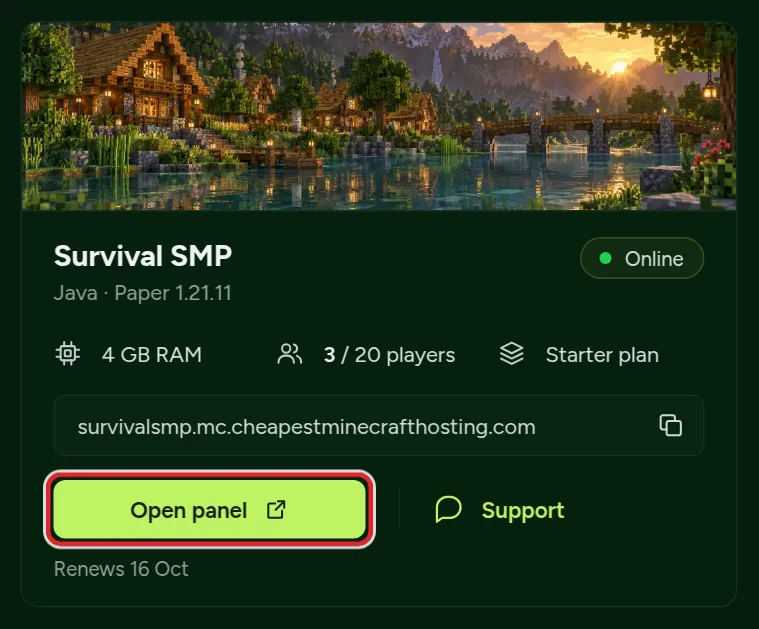
After you sign in, the Dashboard shows a card for each server you have. The card holds the play address with a copy button, the plan, the renewal date and two buttons: Open panel and Support.
- Dashboard: your servers.
- Account: email, password, two-factor login and business details. See account settings.
- Support: open a support case about one of your servers.
- Billing: subscriptions, invoices and your payment method. See billing and invoices.
- Refer a friend: your personal invite link.
The Overview tab of the Minecraft server panel
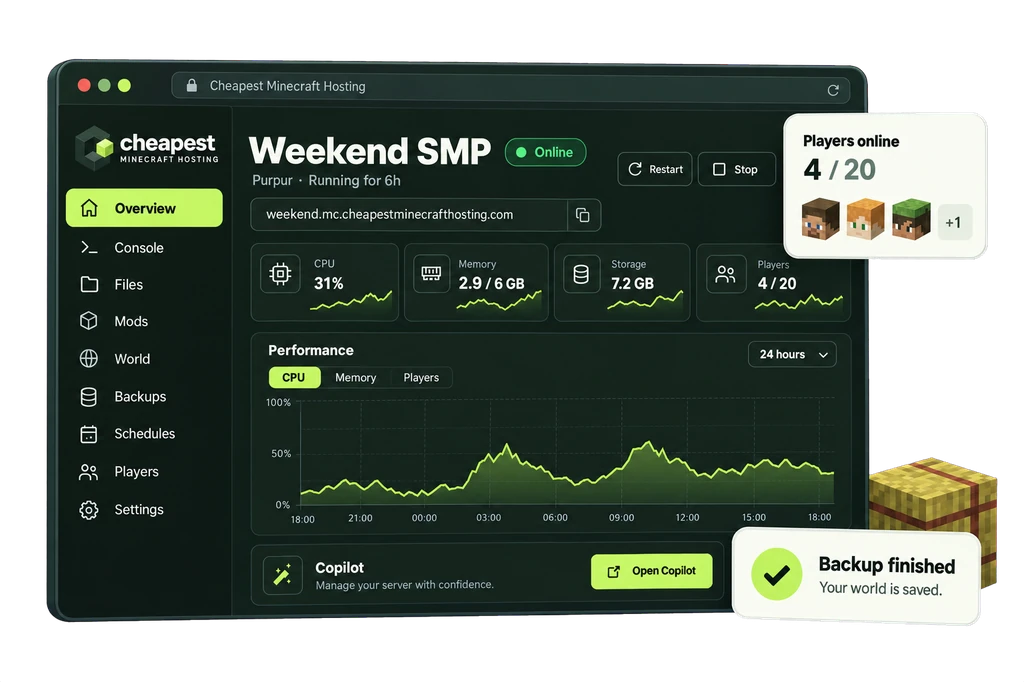
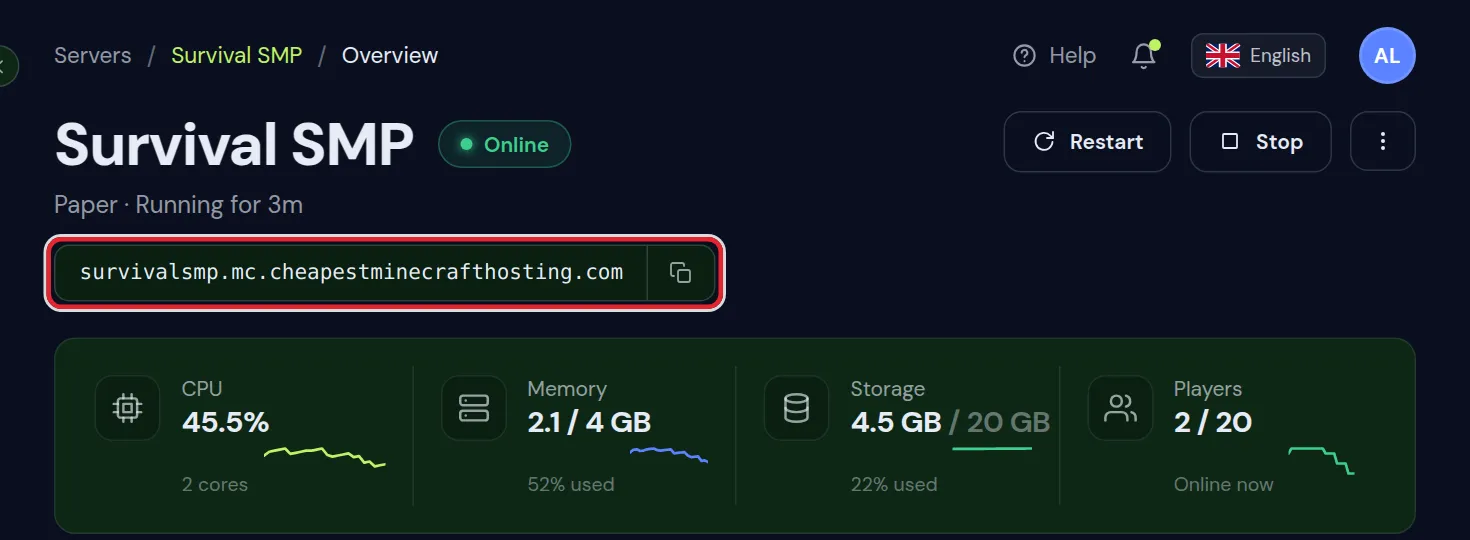
The control panel opens on Overview: the state of your server at a glance, with the play address, the power buttons, live memory and CPU, and what happened recently.
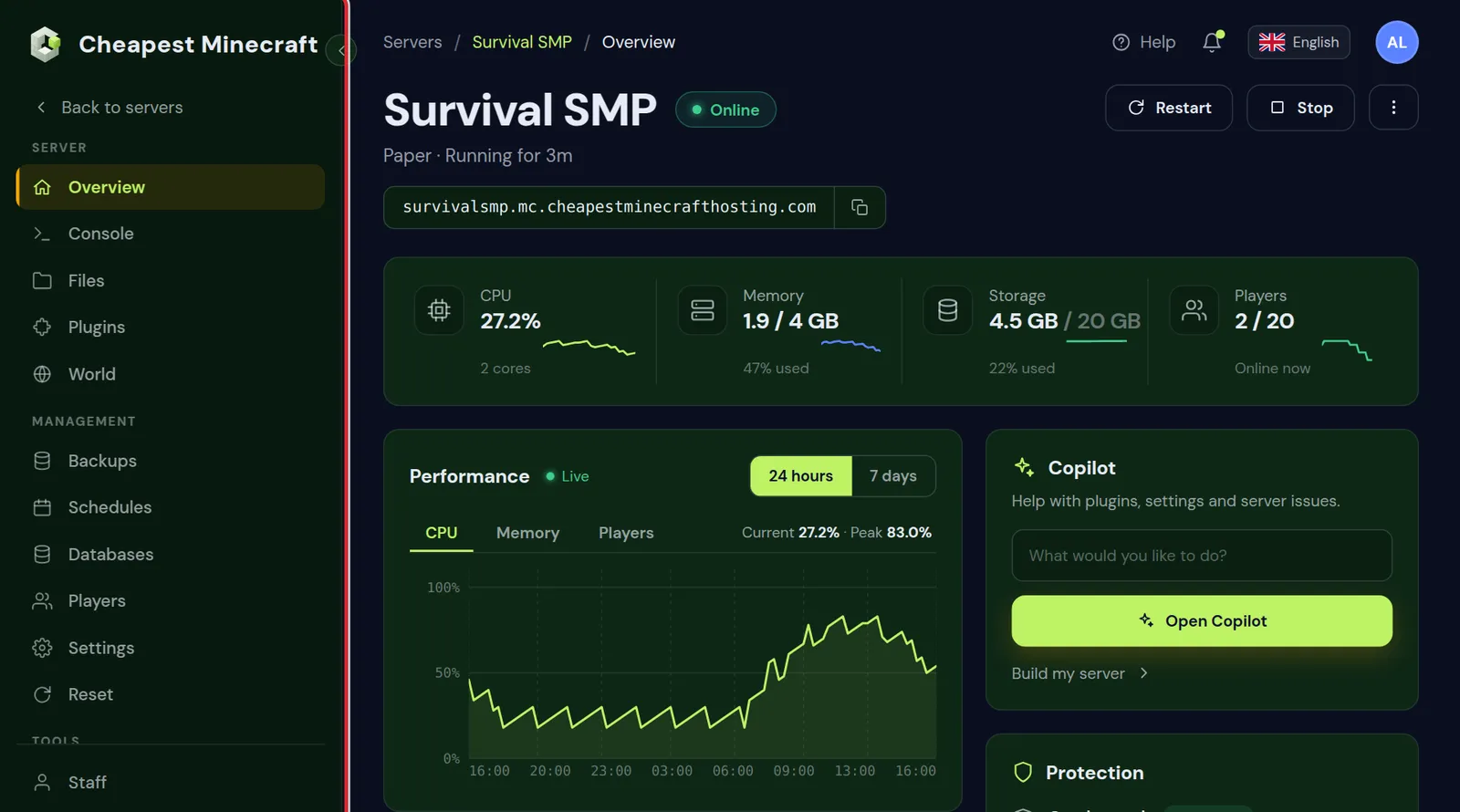
The play address is at the top. Click the copy button and paste it in Minecraft under Multiplayer, Add Server. Join your Minecraft server covers Java and Bedrock step by step.
Read the Overview: performance and protection
- Performance charts processor, memory and players, for the last 24 hours or 7 days. Java holds on to memory it has used once, so a high memory line on its own is normal. Lag together with memory at the very top is the sign to look at how much RAM your server needs.
- A processor line that shoots up whenever players are on points at lag from farms, entities or a plugin; reduce lag shows where to look.
- Protection shows whether Crash watch is on, which brings the server back after a crash, and Set up next to Discord notifications sends those moments to your Discord.
Arrange the Minecraft server panel your way
Click Edit on the Overview to change the layout. While Edit is on:
- Drag the widgets of the Overview to another place, and add or remove widgets, so the cards you use most sit at the top.
- Reorder the menu on the left by dragging or with the arrow keys, whole groups included.
- Click a name or an icon in the menu to rename it or pick another icon, and use the eye to hide a tab you never use.
- Add shortcuts: to a tab, to one part of a page, to a file or folder in Files, or to a website, which opens in a new tab.
The first time you click Edit, a short tour shows each step, and the question mark starts it again later. Your layout is saved with your account, so it is the same on another computer.
Start, stop and restart your Minecraft server
The power buttons sit next to the server name on every tab.
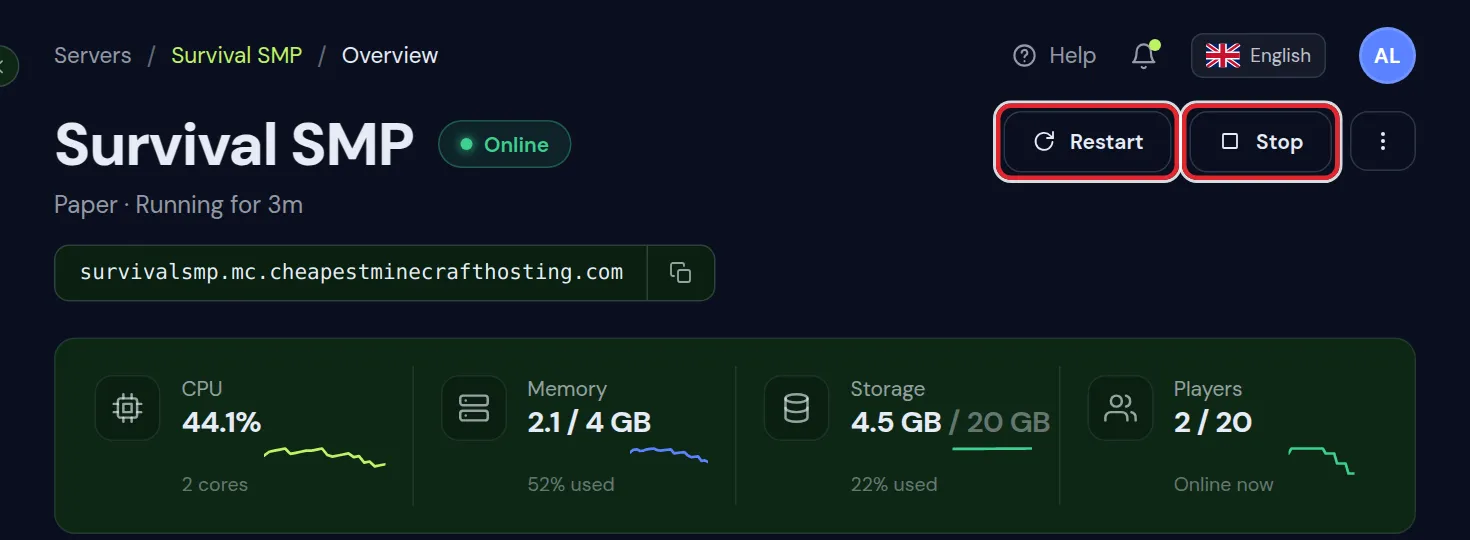
- Start boots the server. It is ready when the console shows the line with
Done. - Stop saves the world and shuts the server down cleanly.
- Restart does both in one go.
- Kill, under the three dots, ends the server at once without saving. Use it only when Stop does not work because the server hangs.
The Minecraft server Console tab
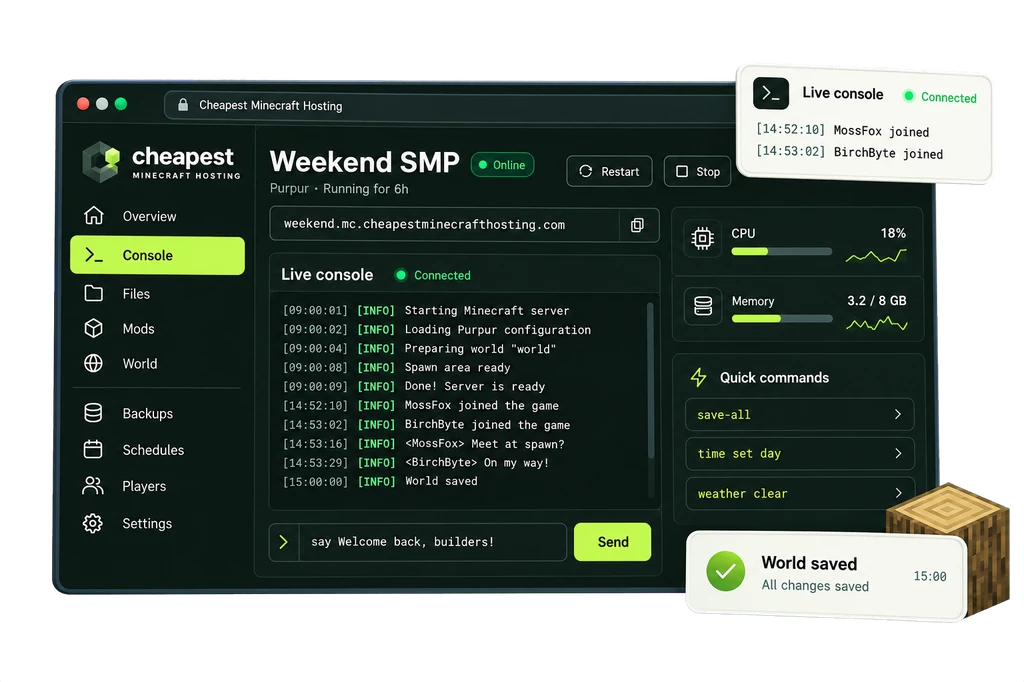
The console shows everything the server says, live, and lets you type commands as the server itself. There is no slash in front of a command here: type op Steve, not /op Steve.
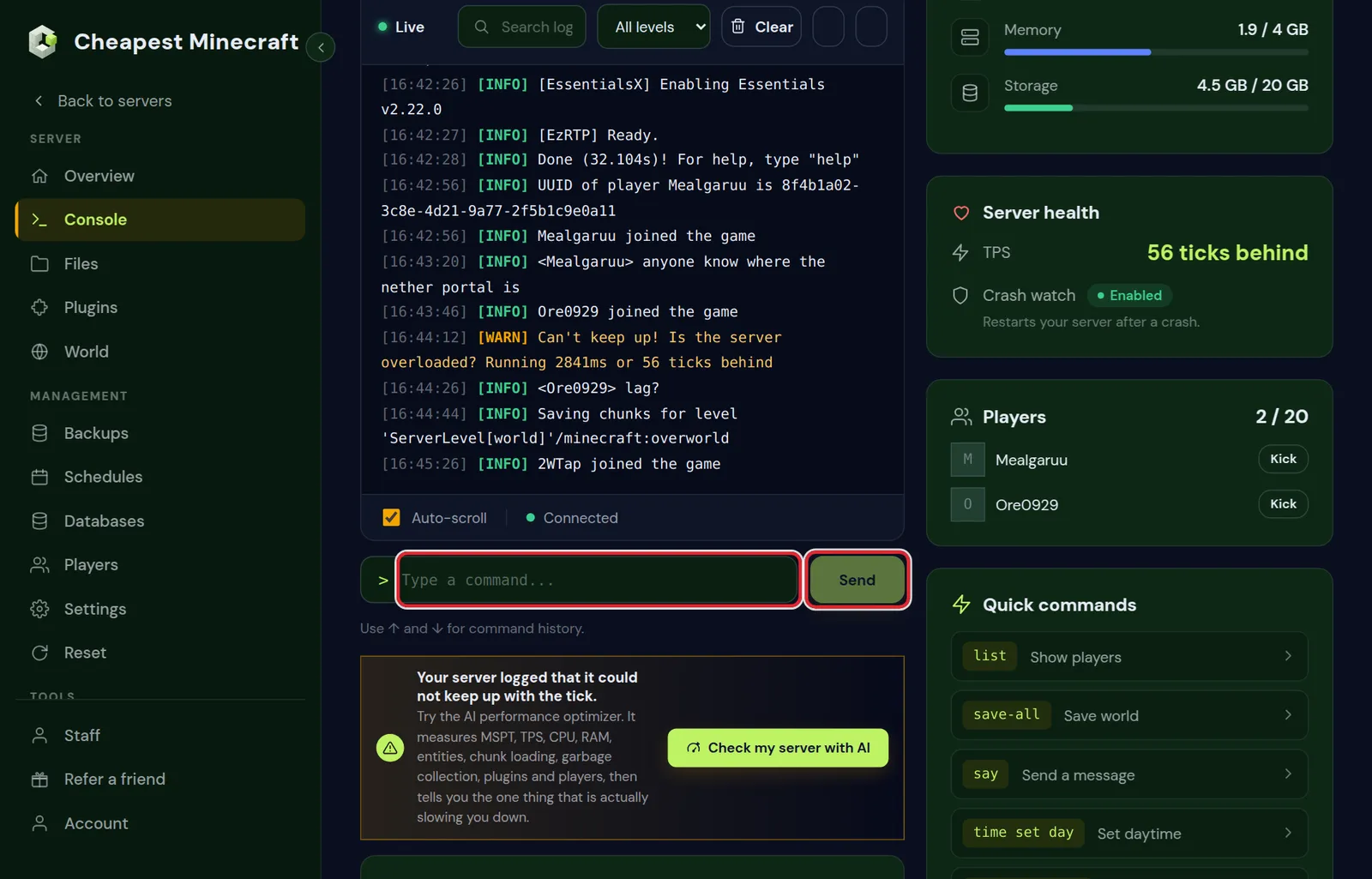
- Quick commands run common ones in one click, such as
listandsave-all. - The level filter and the search box find the one line that matters in a long log.
- Server health shows the TPS, and Crash watch restarts the server when it crashes.
Lines you will see in the Minecraft server console
| Line in the console | What it means |
|---|---|
A line starting with Done | The server is ready and players can join |
Steve joined the game | A player came in |
Steve lost connection: Disconnected | A player left or their connection dropped; the reason follows the colon |
UUID of player Steve is followed by an ID | The account check of a joining player passed |
Can't keep up! Is the server overloaded? | The server fell behind for a moment; see reduce lag |
| Lines marked WARN | Worth a look, often a plugin or a setting, while the server keeps running |
| Lines marked ERROR | Something failed; read the lines around it, and see keeps crashing if the server stops |
Stopping server | A stop or restart began, and the world is saved before the server closes |
The console also says when the last automatic restart happened, so a gap in the output never comes out of nowhere.
The Files tab: your Minecraft server files
Files is the whole server folder: worlds, plugins, config files and logs. You can create folders, upload files, fetch a file from a link, and edit, download, rename or extract what is there.
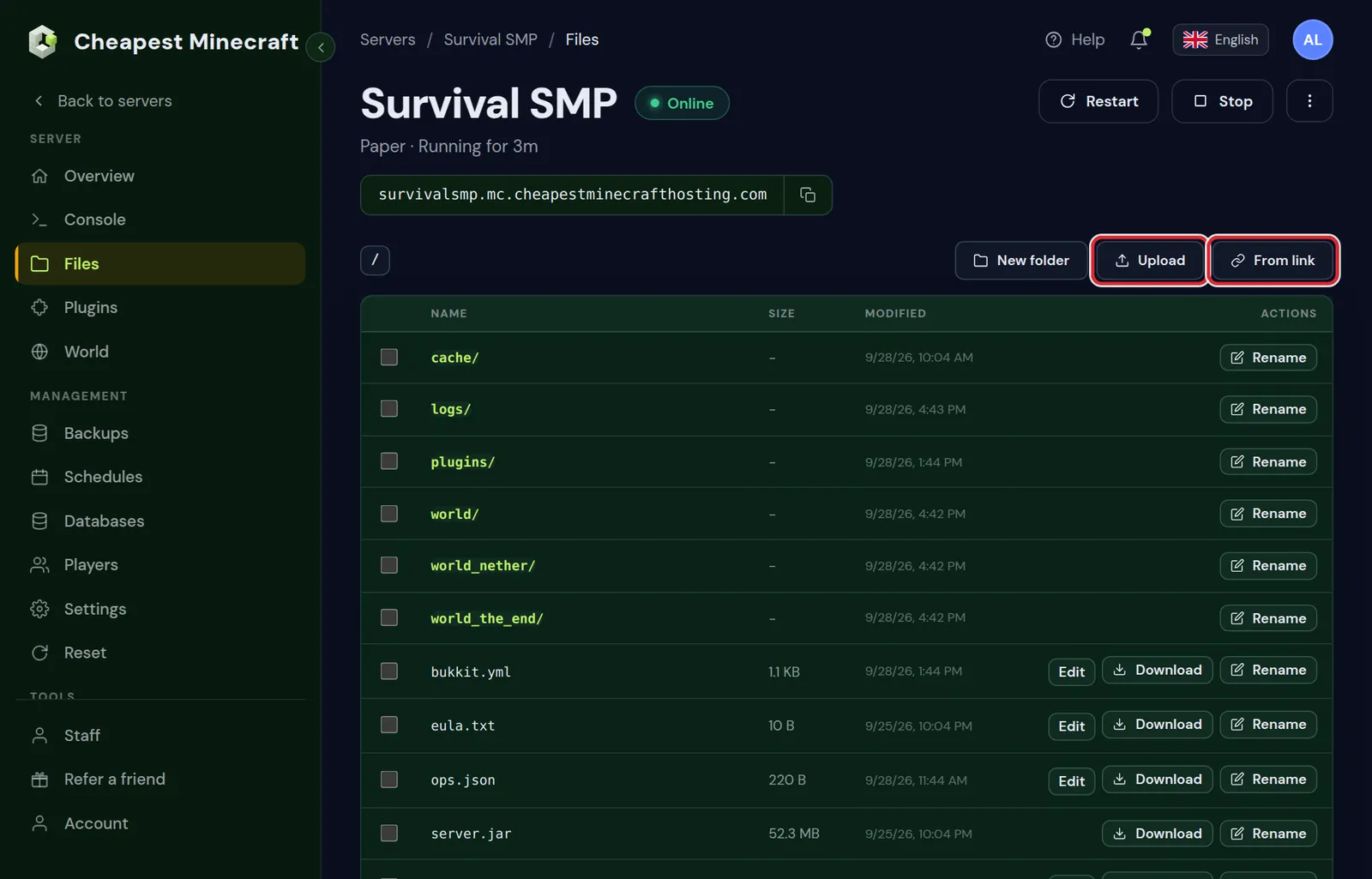
server.properties holds the main settings; plugins and world are what you open most.Anything that is also offered in Settings is safer to change there. A broken config file can stop the server from booting.
More tabs: Mods, Activity and Experience
| Tab | What it is for |
|---|---|
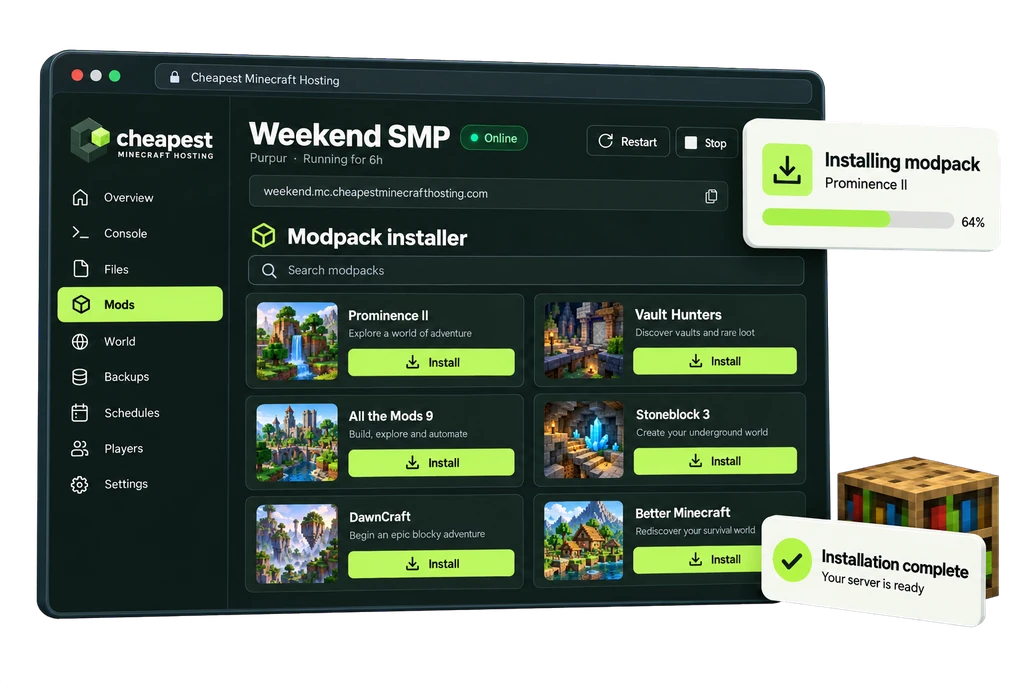
| Mods | Verified server mods from Modrinth for Fabric, Forge, NeoForge and Quilt, each checked before it is put in place, and whole packs from Modrinth, CurseForge or Feed The Beast. See install mods. |
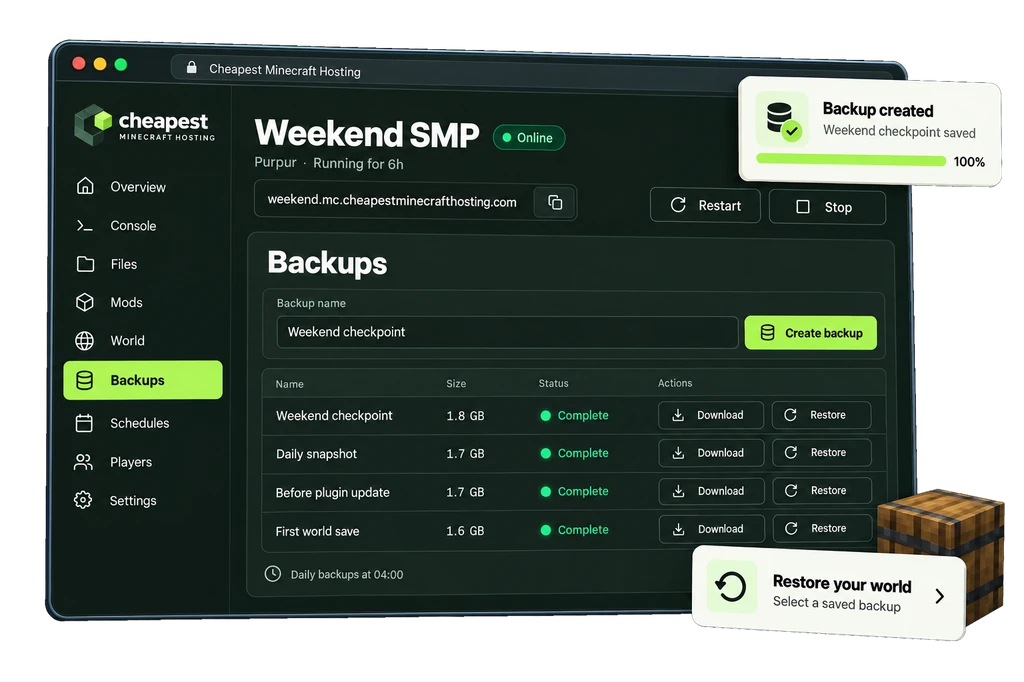
| Activity | A timeline of every start, stop and restart, every file change and every backup, with the time and who did it. A change made by the Copilot can be undone from here. |
| Experience | What players say in public chat, sorted into lag complaints, grief and theft reports, questions nobody answered, praise, and talk about dupes or exploits. |
Plugins only shows on Paper, Purpur and Spigot, and Mods only on a modded server, so the menu never offers a tab that does not fit your server. People you invited as staff only see the tabs their rights allow.
Where to find each setting in the Minecraft server panel
| You want to | Go to | Guide |
|---|---|---|
| Change the Minecraft version or server type | Settings, Server software | Change the version |
| Make someone op or add them to the whitelist | Players | Whitelist and operators |
| Install a modpack | Mods, CurseForge and FTB packs | Install a modpack |
| Turn on keepInventory or another game rule | World, Game rules | Game rules |
| Add a data pack | World, Data packs | Install datapacks |
| Start a new world with another seed | World, the reset card | Change the seed |
| Upload a world or move a server in | Files | Move your world |
| Set the MOTD and the server icon | Settings, Server description and Server identity | Icon and MOTD |
| Close the server for maintenance | Settings, the maintenance mode card | Maintenance mode |
| Restart every night | Settings, Automatic restart | Automatic restarts |
| Get crash alerts in Discord | Settings, Discord notifications | Chat and Discord |
| Put two servers behind one address | Settings, Server network | Server network |
| Pick another Java version | Settings, the Java version | Java version |
Looking for a setting that is not in this list? Settings has a search box at the top that finds any option by name.
Ask Minecraft server support for help
Stuck? Click Support on your server card, or Support in the menu on the left of the client area. The form asks which server needs help, what it is about and what happened, and creates a case with a number before WhatsApp opens with the details filled in.
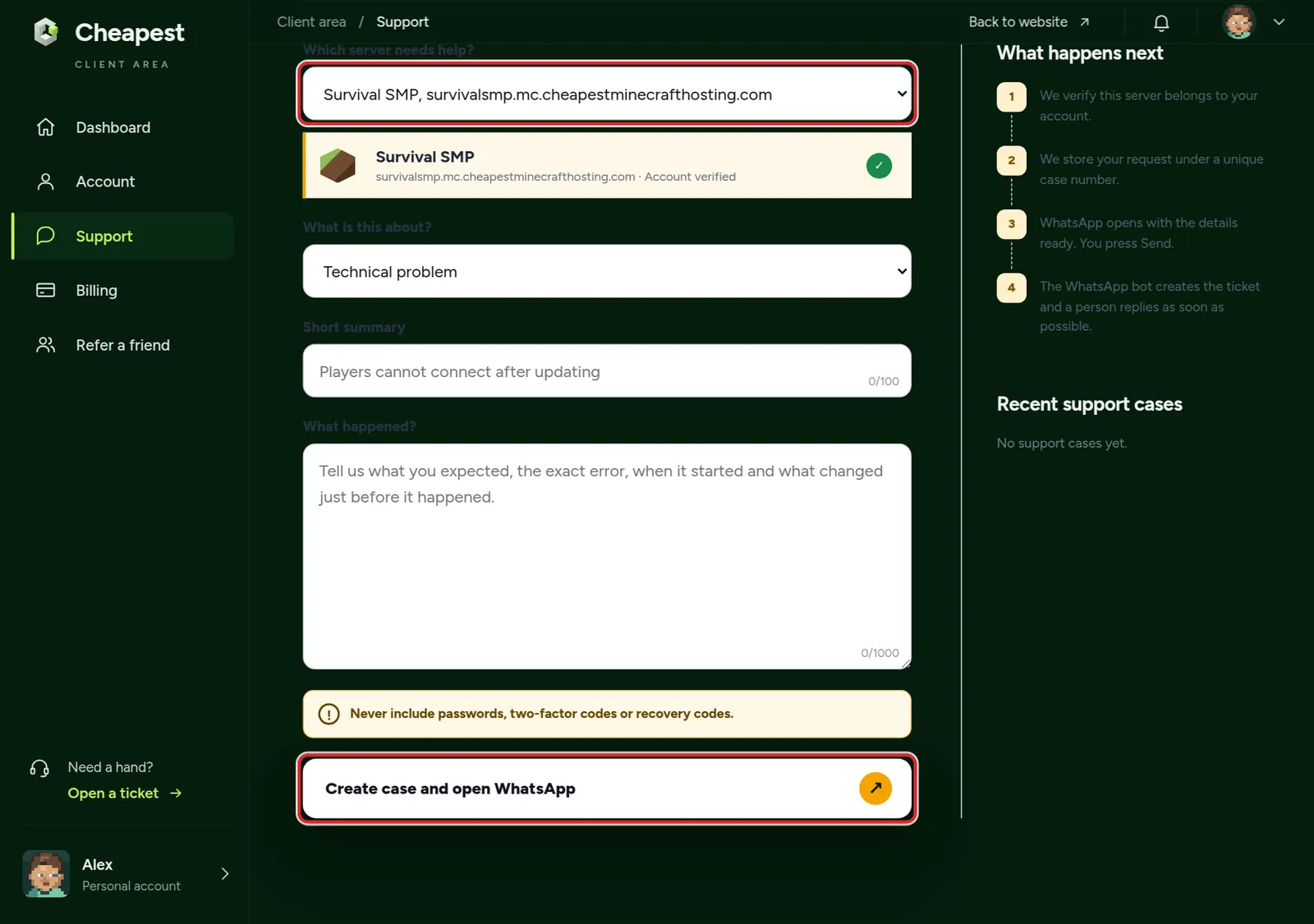
We answer every day from 07:00 to 23:00 CET. You can also email [email protected].
Questions from Minecraft server owners
What is the difference between the client area and the Minecraft server control panel?
The client area is your account: all your servers, your invoices and support. The control panel is one server: its console, files, plugins and settings. Open panel on a server card takes you from the first to the second.
Can someone else help me manage my Minecraft server?
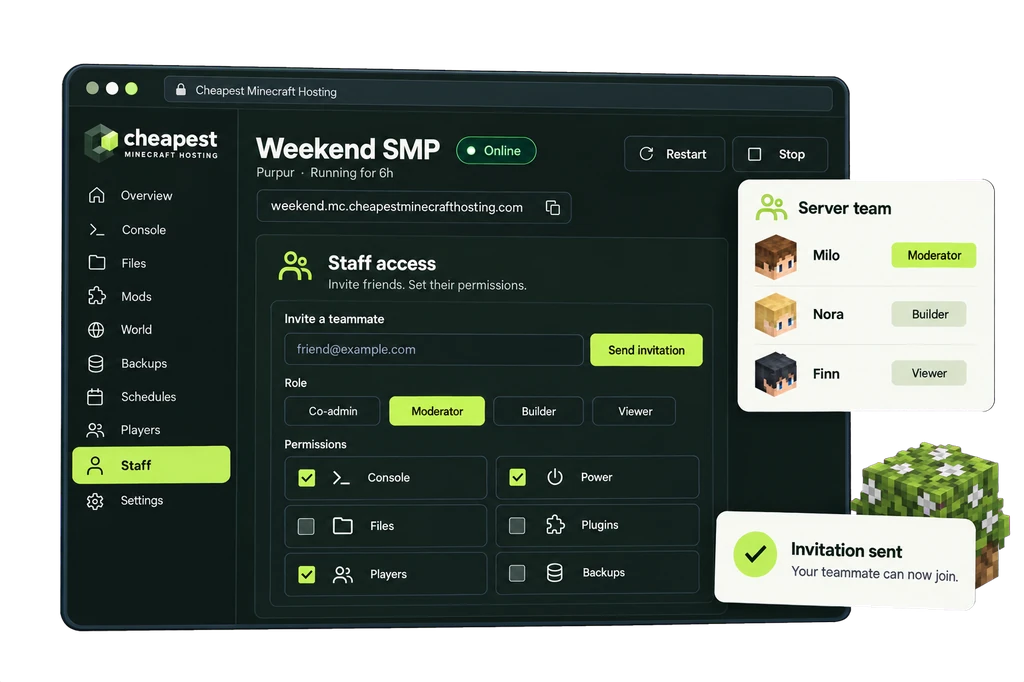
Yes. Invite them in the Staff tab of the control panel. They get their own login, so you never have to share your password.
Do I need to type a slash before commands in the Minecraft server console?
No. The console runs commands as the server itself, so you type op Steve rather than /op Steve.
How do I get to the Minecraft server control panel on my phone?
Sign in to the client area on your phone and tap Open panel on your server. The panel works in the phone's browser.
Why do I not see the Plugins tab in my Minecraft server panel?
The Plugins tab only shows on Paper, Purpur and Spigot. On Fabric, Forge, NeoForge or Quilt you get the Mods tab instead. Check the server type under Settings, Server software.
Can I see who restarted my Minecraft server?
Yes. The Activity tab lists every start, stop and restart with the time and who did it, together with file changes and backups.
How do I see the TPS of my Minecraft server?
Server health on the Console tab shows the TPS, where 20 is full speed. On Paper and Purpur you can also type tps in the console.
Can I change the layout of the Minecraft server panel?
Yes. Click Edit on the Overview to move widgets, reorder or rename the menu, hide tabs and add shortcuts. Your layout is saved with your account.
Checked step by step in our client area and control panel, September 2026. Written by the Cheapest Minecraft Hosting team, first published , updated .