
 Astroworld
Troubleshooting
How to back up and restore your Minecraft server
A backup is a copy of the whole server folder: your worlds, plugins, mods, settings and player data. With one in place, a plugin update that breaks the server or a night of griefing costs you five minutes instead of the world.
Your plan includes one backup slot. You make that backup yourself, whenever you are about to change something. Automatic backups, made for you on a schedule, are an optional extra on your plan.
In short
To back up a Minecraft server, open Backups in the panel, give the backup a name such as Before updating plugins and click Create backup; it is ready when the status says Complete. To restore it, stop the server on the Overview tab, click Restore on that backup, confirm with Restore this backup and start the server again. Download a copy to your computer if you want to keep more than one.
Make a backup of your Minecraft server
- In the client area, click Open panel on your server.
- Choose Backups in the menu on the left, under Management.
- Type a name that tells you later why you made it, for example
Before updating plugins. The name is optional. - Click Create backup. The backup appears in the list below with the status Complete when it is ready.
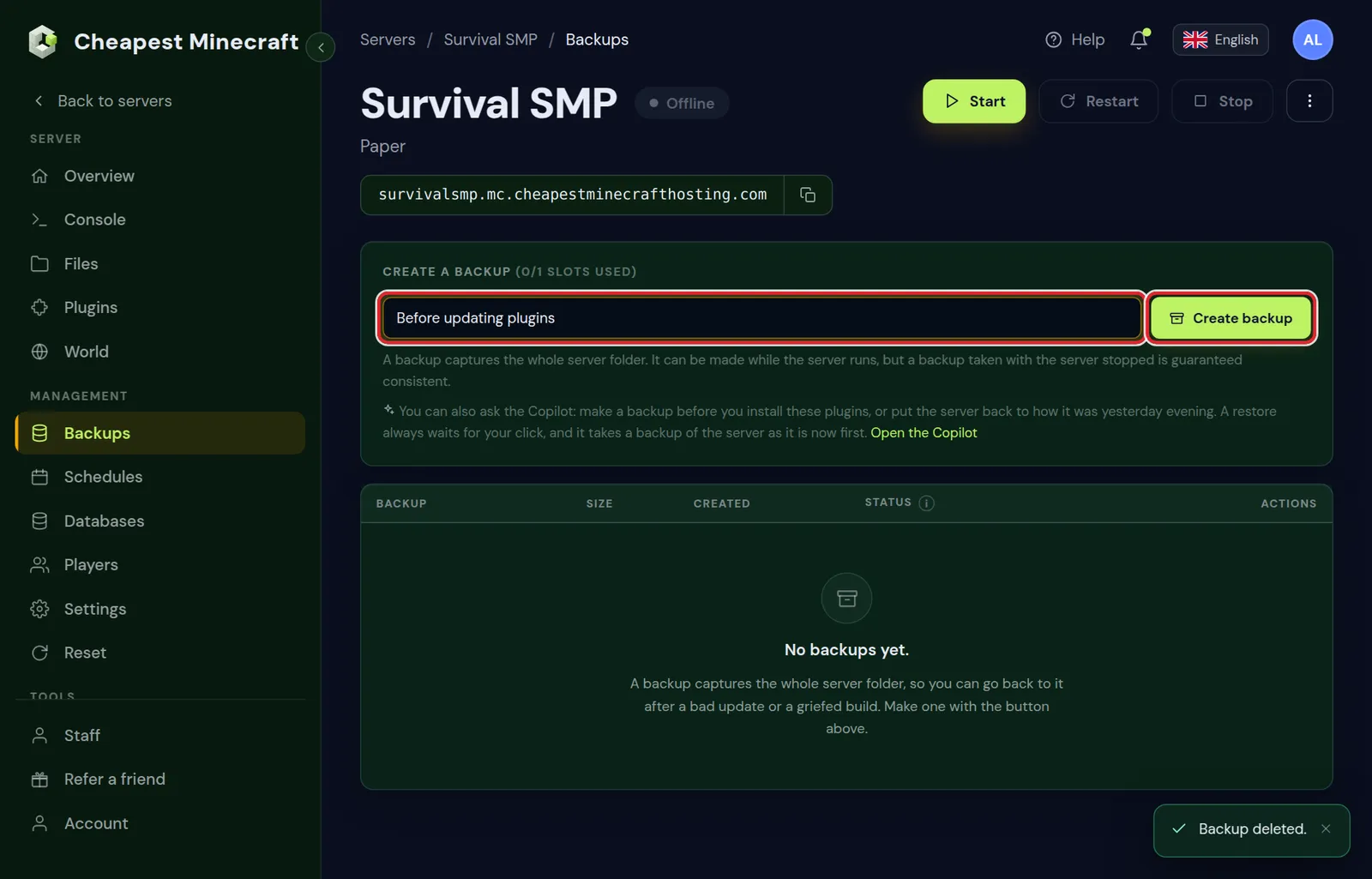
A backup can be made while the server runs. A backup taken with the server stopped is guaranteed consistent, because nothing is written to the world while it is copied. Before a big change, such as a new Minecraft version, stop the server first.
Make the backup right before the change, not the day before. Anything built between the backup and a restore is lost.
What a Minecraft server backup includes
| Part of your server | In the backup? |
|---|---|
| The overworld, the Nether and the End | Yes |
| Plugins and mods with their settings and data | Yes |
| Player data: inventories, ender chests and positions | Yes |
server.properties, the whitelist, operators and bans | Yes |
| Logs | Yes, as files in the folder |
| A database from the Databases tab | No: it lives outside the server folder |
| Panel settings such as the server type and version | No: they belong to the panel, not to the files |
The database line matters if LuckPerms, a ban plugin or a shop keeps its data in a database instead of in files. Export that data from the plugin itself as well, for example with lp export in LuckPerms, before a risky change.
When to make a Minecraft server backup
- Before you change the Minecraft version, because a world opened on a newer version cannot go back.
- Before you update or add plugins and mods, one change at a time.
- Before you install a modpack over an existing server.
- Before you give someone new operator or file access.
- Before a big event, a new season or a reset of part of the map.
Two changes take a backup for you: a world reset with a new seed in the World tab, and moving a server in from another host in Files.
When the Minecraft server backup slot is full
The top of the Backups tab shows how many slots you use. With the slot in use, Create backup stays grey and the panel tells you to delete an old backup first.
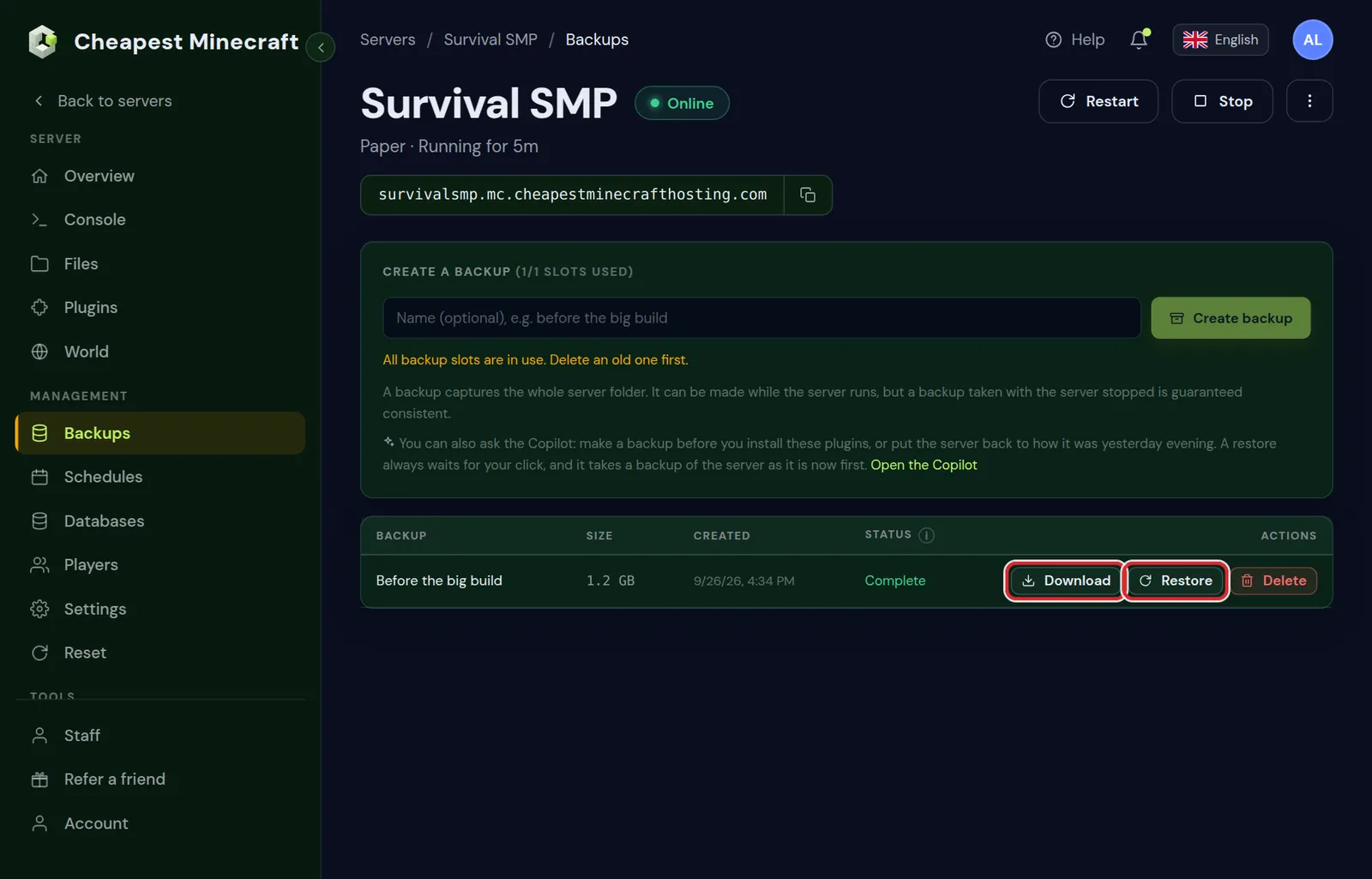
- If you want to keep the old backup, click Download on its row first and save the file on your computer.
- Click Delete on the old backup and confirm with Delete backup.
- Make the new backup as described above.
Automatic Minecraft backups and the Bin
With automatic backups on your plan, the panel makes a backup every night and the newest ones fill your slots. The Backups tab then shows when the last automatic one ran.
- When a new backup needs room, the oldest one is not deleted at once. It moves to the Bin at the bottom of the tab and stays there for 7 days.
- Keep it in the Bin puts that backup back in your slots, as long as one is free. Restore and Download work from the Bin too.
- The tab also shows how much storage your backups take of what comes with your plan. A very large world can mean you keep fewer backups than you have slots.
Backup status: Running, Complete or Failed
| Status | What it means | What to do |
|---|---|---|
| Running | The copy is still being written | Wait; on a large world it can take a few minutes |
| Complete | The backup is whole | It can be downloaded or restored |
| Failed | Nothing usable came out | Stop the server and make the backup again |
Only a backup with the status Complete can be restored. Check the Size column too: a backup of a few kilobytes from a server with a big world is a sign that something went wrong.
Restore a Minecraft server backup
A restore puts the whole server back to the moment of the backup. Everything built or changed since then is replaced, so be sure before you click.
- Go to Overview and click Stop. Wait until the badge next to the server name says Offline.
- Open Backups and click Restore on the backup you want.
- Read the warning and click Restore this backup.
- When the restore is finished, go back to Overview and click Start.
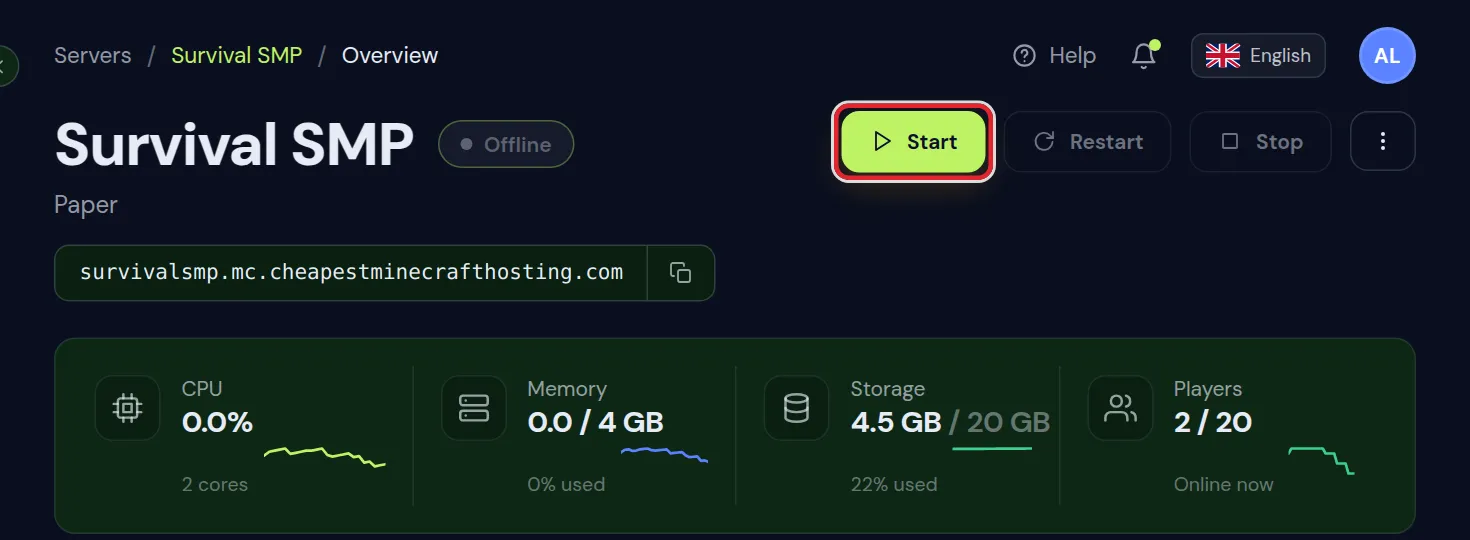
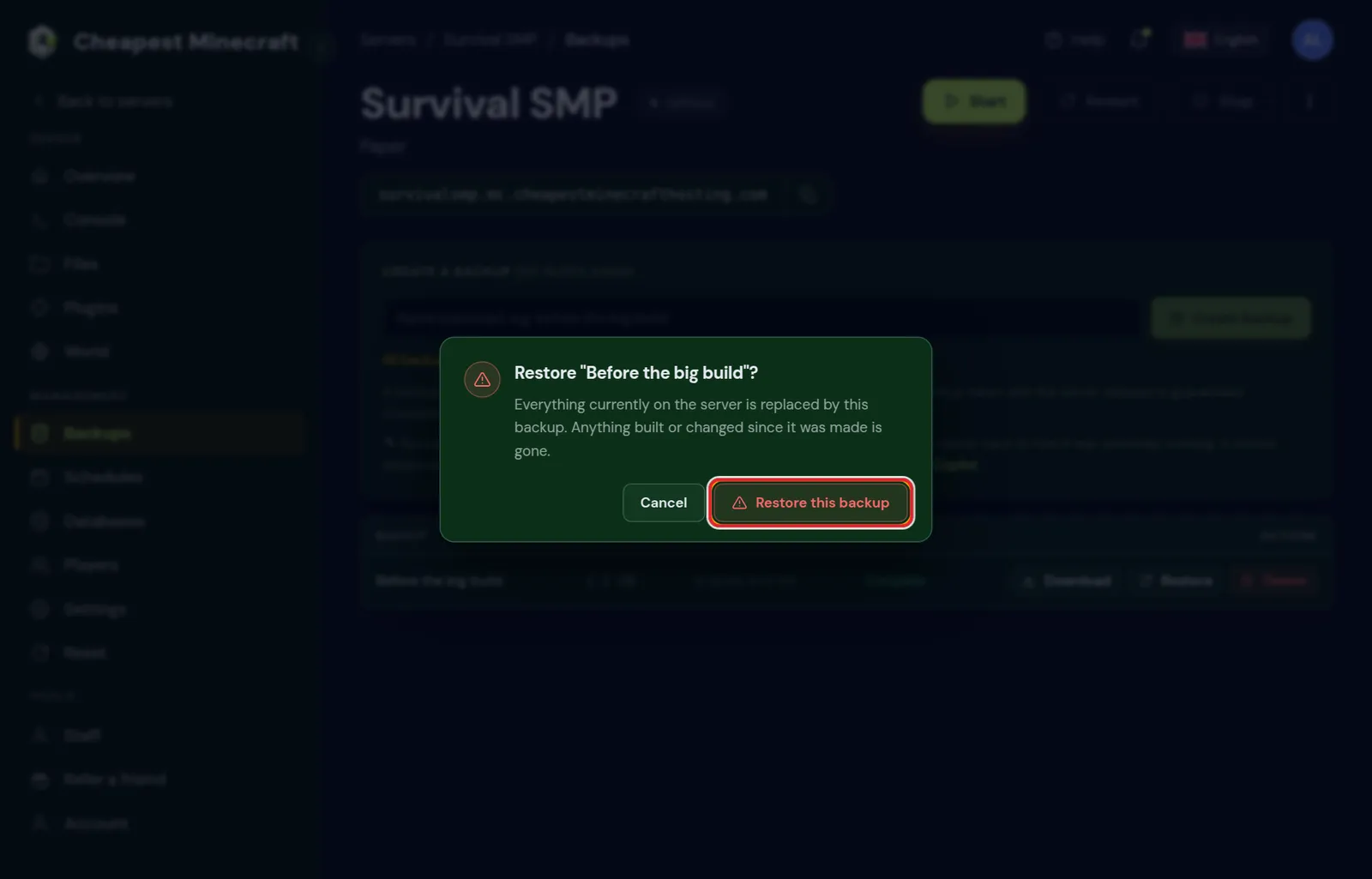
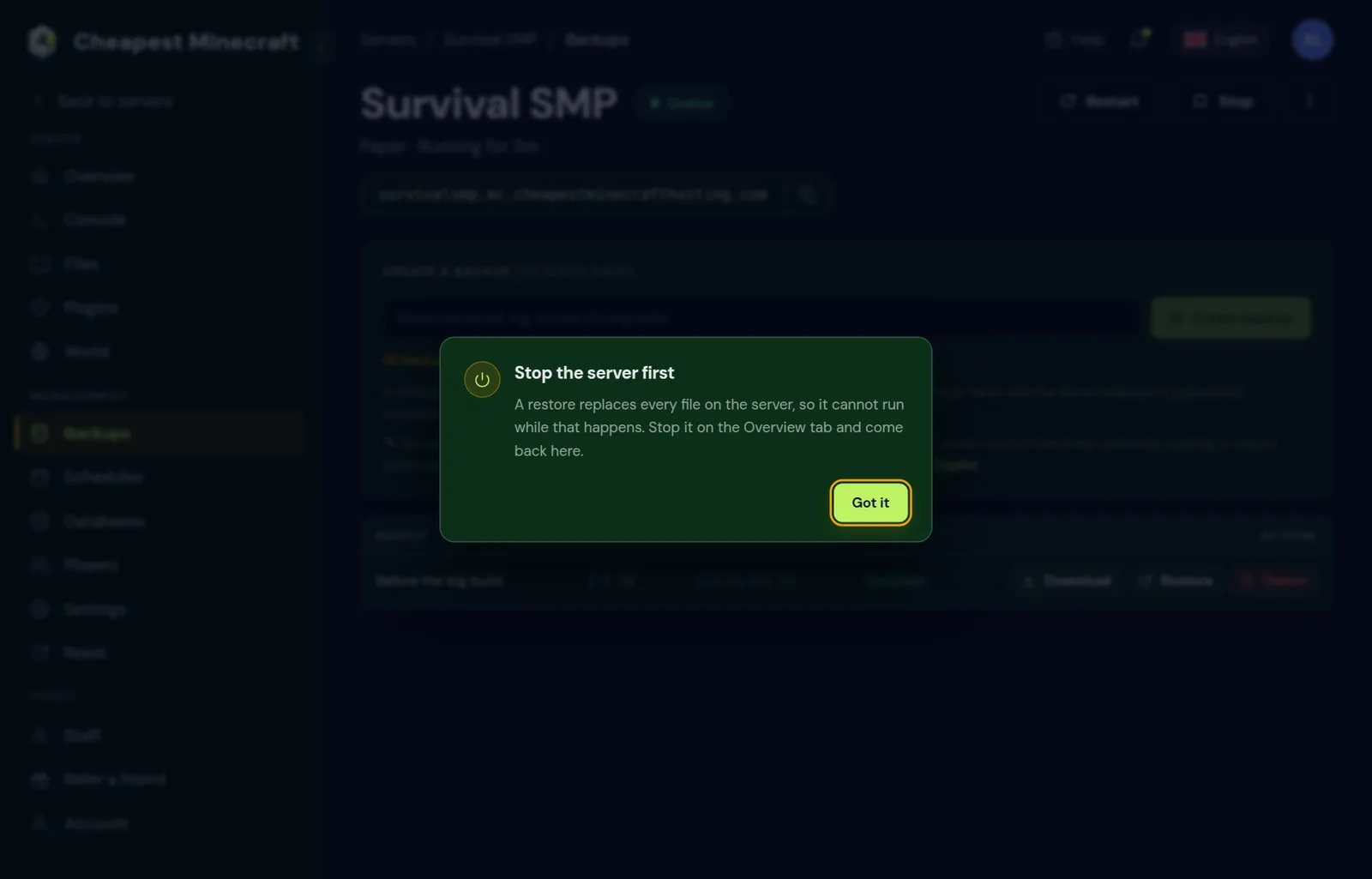
Forgot to stop the server? The panel stops you there and asks you to stop it on the Overview tab first. That is on purpose: a restore replaces files the running server still has open.
Restore one player, one world or one file from a backup
A restore always covers the whole server. When only one part went wrong, take that part out of a download instead:
- Click Download on the backup and open the file on your computer. It is one
.tar.gzarchive of the server folder; Windows 11 and Mac open it directly, older Windows needs a free tool such as 7-Zip. - Find what you need. A player's inventory is
world/playerdata/<id>.dat, where the ID of the player is inusercache.json. The Nether is the folderworld_netheron Paper and Purpur, and plugin settings are insideplugins. - Stop the server, or for a player file make sure that player is offline.
- In Files, upload the file or folder to the same place and replace the old one.
- Start the server and check the result.
Replace a player file only while that player is offline. The server writes their data when they leave, which would overwrite the file you just put back.
Messages when you restore a Minecraft backup
| Message or problem | What to do |
|---|---|
| Stop the server before restoring a backup. | Click Stop on the Overview tab and wait for Offline |
| That backup never finished successfully, so it cannot be restored. | Pick a backup with the status Complete |
| The server does not start after a restore | The backup may come from another Minecraft version; check Settings, Server software |
| Plugins are missing after a restore | They were added after the backup was made; install them again |
After a restore the console shows the start as usual. Minecraft server won't start helps when it stops halfway.
Keep a copy of your Minecraft world on your own computer
A backup in the panel lives next to the server. A copy on your own computer is independent of it, and it is the way to keep more than one backup: download the current one before you make a new one.
- Download on a backup row saves the whole backup as one file.
- To bring it back later, upload it in the Files tab and unpack it there. Move your world to our server shows how uploading and unpacking work.
- Need only one file back, for example a plugin config? Open the download on your computer, take that file out, and upload just that file in Files.
Put a backup on another Minecraft server
A downloaded backup is not tied to the server it came from. To copy a world to a second server, for example a test server, upload the download in Files of that server and unpack it, as in move your world to our server. Set the same server type and version on it first.
You can also ask the Copilot in the panel to make a backup before a change. A restore it prepares still waits for your own click.
Questions from Minecraft server owners
How many Minecraft server backups can I keep?
One backup slot is included in your plan. Download a backup to your computer before you delete it, and you can keep as many copies as you like at home.
Are Minecraft server backups made automatically?
Not on the standard plan: you make the backup yourself before a change. Automatic backups on a schedule are an optional extra you can add to your plan.
Does a restore delete my current Minecraft world?
Yes. The server goes back exactly to the moment of the backup, and anything built after that is replaced. Download a copy first if you might want the current state back.
Why can I not restore while the Minecraft server runs?
A restore replaces the files the running server has open. Stopping it first means the server does not write over the restored world while it shuts down.
Can I restore one player or one area of my Minecraft world?
Not with a full restore, which always covers the whole server. For griefing in one area, a block logging plugin can undo the damage without touching the rest of the world. Stop griefing explains how.
Is my database included in a Minecraft server backup?
No. A backup holds the files of the server. A database from the Databases tab lives outside them, so export plugin data such as LuckPerms ranks separately before a risky change.
How long does a Minecraft server backup take?
Seconds for a new world and a few minutes for a large one. The status says Running until the copy is whole and then changes to Complete.
Can I restore a backup to a different Minecraft server?
Yes, by hand. Download the backup, upload it in the Files tab of the other server and unpack it there, with the same server type and version set on that server.
What file do I get when I download a Minecraft server backup?
One .tar.gz archive of the whole server folder. Windows 11 and Mac can open it directly; on older Windows a free tool such as 7-Zip opens it.
Checked step by step in our control panel, September 2026. Written by the Cheapest Minecraft Hosting team, first published , updated .