
 Astroworld
Troubleshooting
Minecraft server won't start: how to find the cause and fix it
A server that will not start nearly always says why. The reason is in the console, a few lines above the point where it stops, and it is usually one of a handful of causes: a plugin or mod that does not fit, the wrong Java version, a config file with a typo, or a world file that got damaged.
Work through this page from the top. Most servers are running again after the first two sections.
In short
When a Minecraft server won't start, open the Console, filter on Errors and read the first red line, because it names the cause. The usual causes are a plugin or mod made for another version, a Java version that is too old, a typo in a config file, too little memory, or a damaged world file. Rename the plugin to .jar.off, pick the right Java in Settings, fix the file or restore a backup, and start again.
1. Read what the Minecraft server says
Open the panel and look at the badge next to the server name. Offline with a Start button means the server stopped; click Start once and switch to the Console tab while it boots.
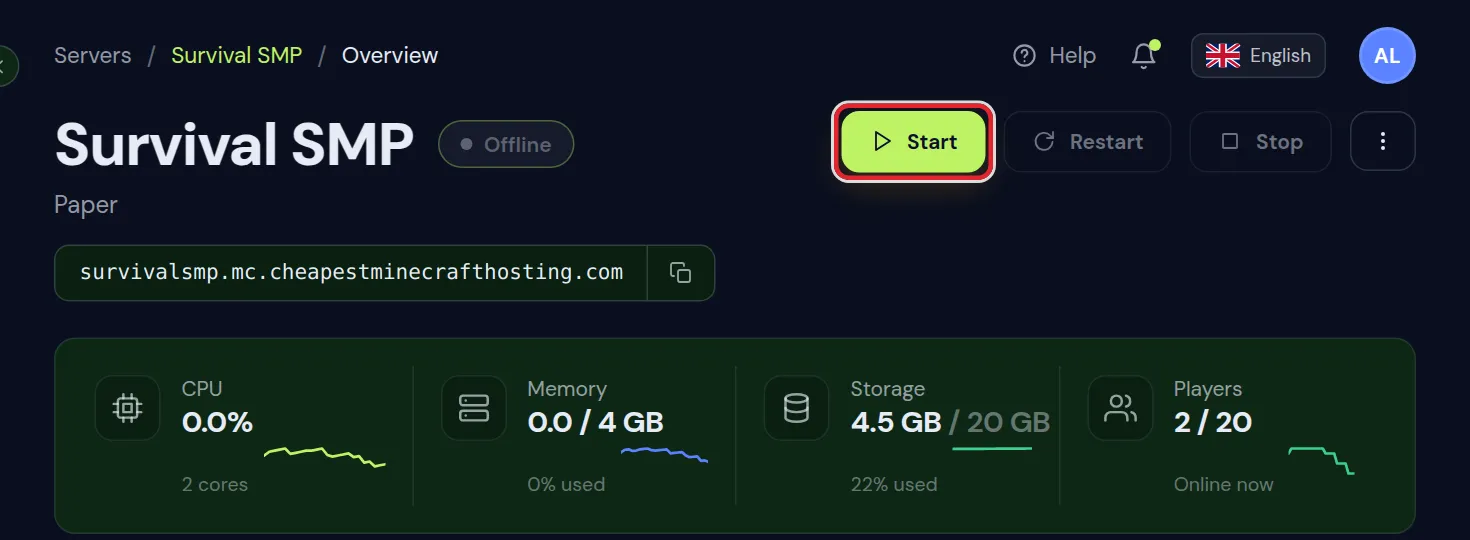
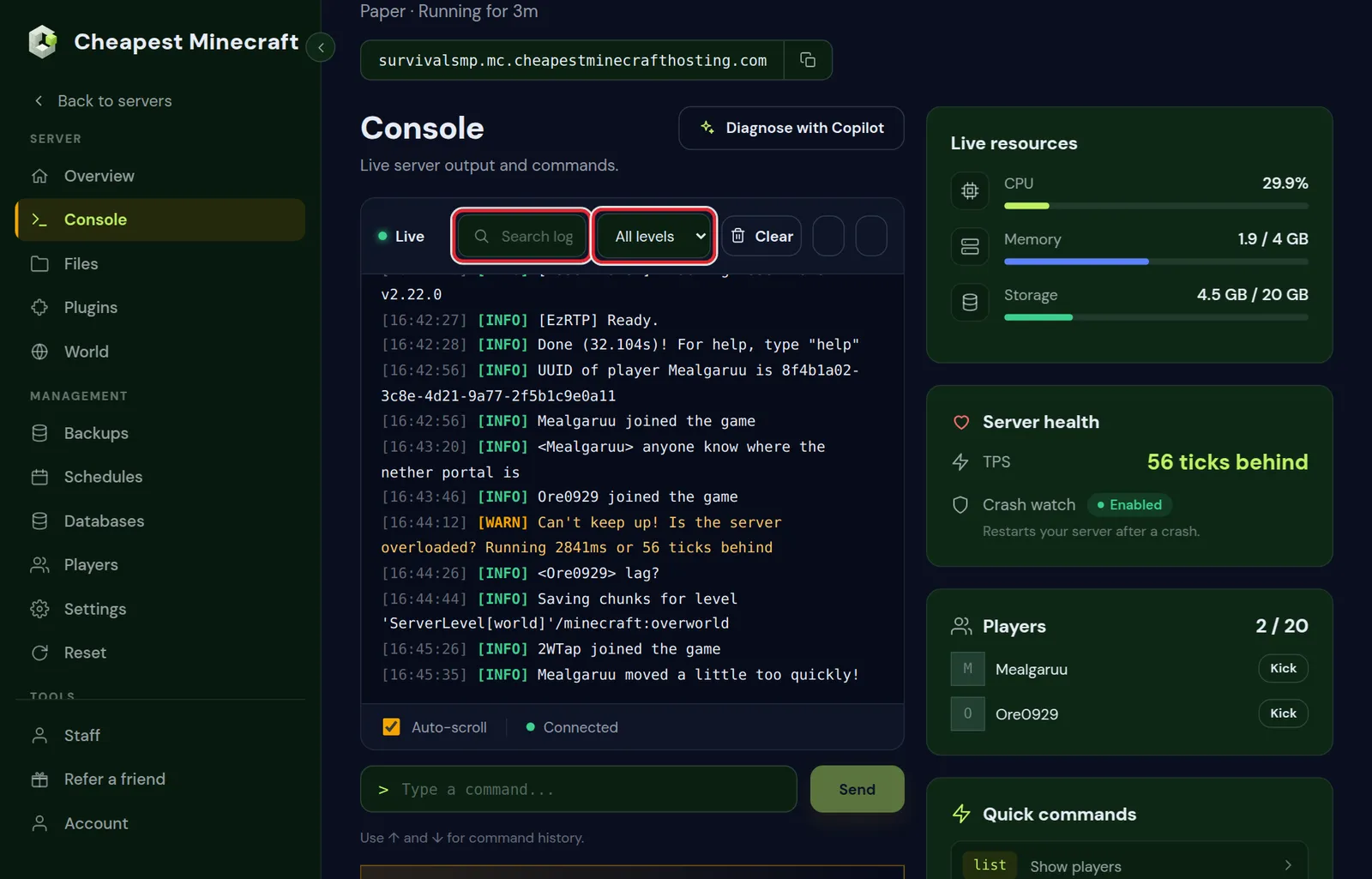
- In the Console tab, set the level filter to Errors. Only the red lines stay.
- Look at the first error, not the last. The last lines are often a result of the first one.
- Still unclear? Set the filter to Warnings as well; a warning just before the error often names the plugin or file.
- Type a word from the error, such as a plugin name, in the search box above the log to see every line about it.
Did the server stop before you opened the console? The full log of the last start is saved in the Files tab, in logs/latest.log. Older starts are kept next to it as .log.gz files, which the panel can extract for you.
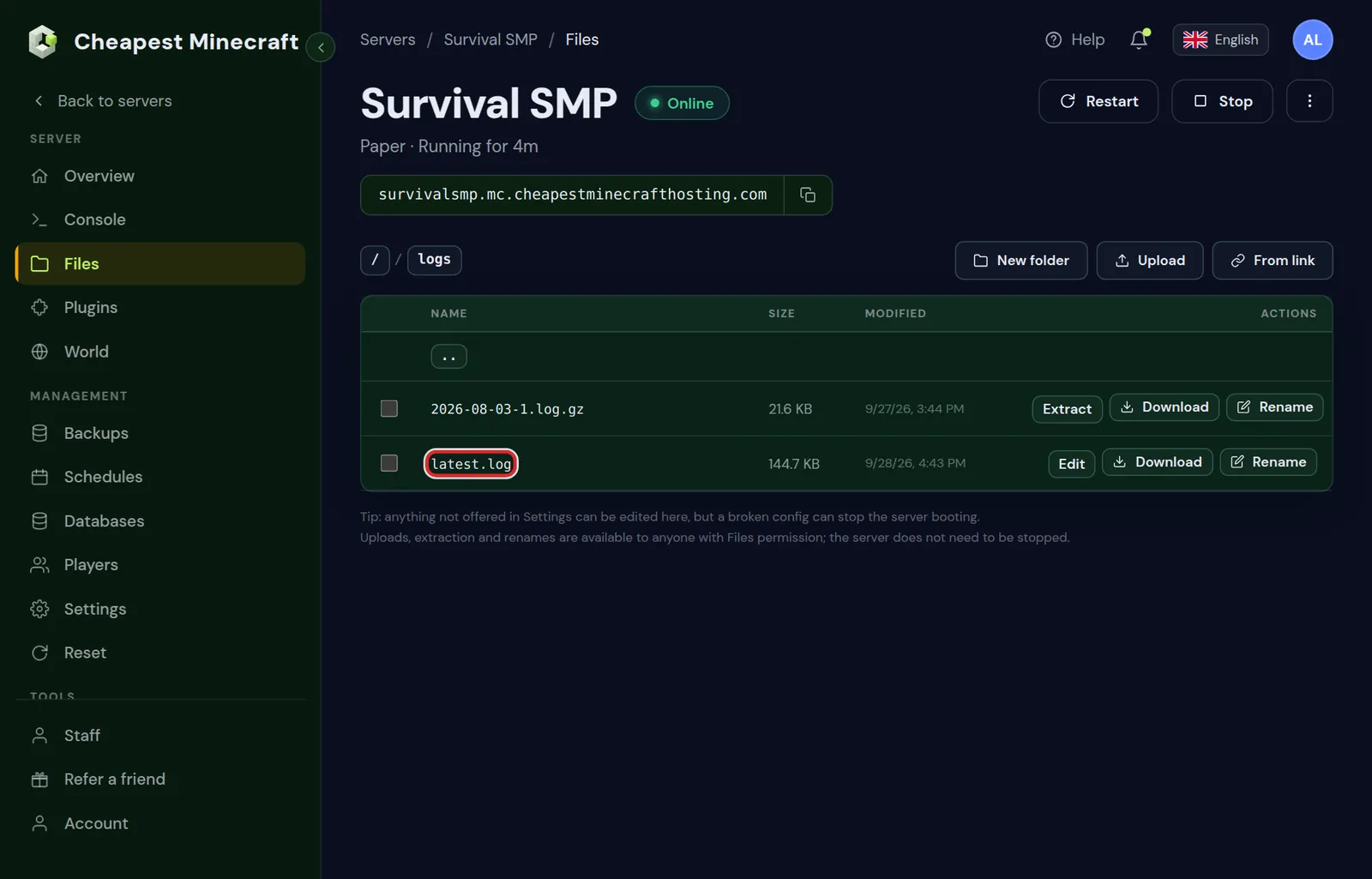
latest.log is the last start. Open it with Edit to read it, or Download it to send to someone who helps you.2. Find your Minecraft server error in this table
| What the log says | Cause | Fix |
|---|---|---|
Could not load 'plugins/Name.jar' with Unsupported API version | A plugin made for another Minecraft version | Update the plugin, or disable it as shown below |
UnsupportedClassVersionError or class file version | The server runs on an older Java than it needs | Pick a newer Java in Settings under Startup |
OutOfMemoryError: Java heap space | The server ran out of memory while loading | Remove the heaviest mods or plugins, or move to a plan with more RAM |
Unknown dependency or requires another plugin or mod | A plugin or mod needs another one that is not installed | Install the missing one, at a matching version |
Failed to bind to port or Address already in use | The port in server.properties was changed | Set server-port back to the port the panel shows |
Exception reading a .mca, level.dat or region file | Part of the world file is damaged | Restore your latest backup |
You need to agree to the EULA | eula.txt says false | Open eula.txt in Files and set it to eula=true |
Your error is not in the table? Copy the first red line into a search engine together with the word Minecraft. Almost every startup error has been hit by someone before, and the top result usually names the fix.
3. Disable a plugin that stops the Minecraft server
When the log names a plugin, you do not have to delete it. Rename the file so the server skips it, start the server, and decide later what to do with it.
- In the Files tab, open the
pluginsfolder. - Click Rename on the plugin's
.jarfile and add.offto the end, for exampleBrokenPlugin.jar.off. - Start the server. It ignores every file that does not end in
.jar. - Once you have a version that fits, upload it and delete the
.offfile.
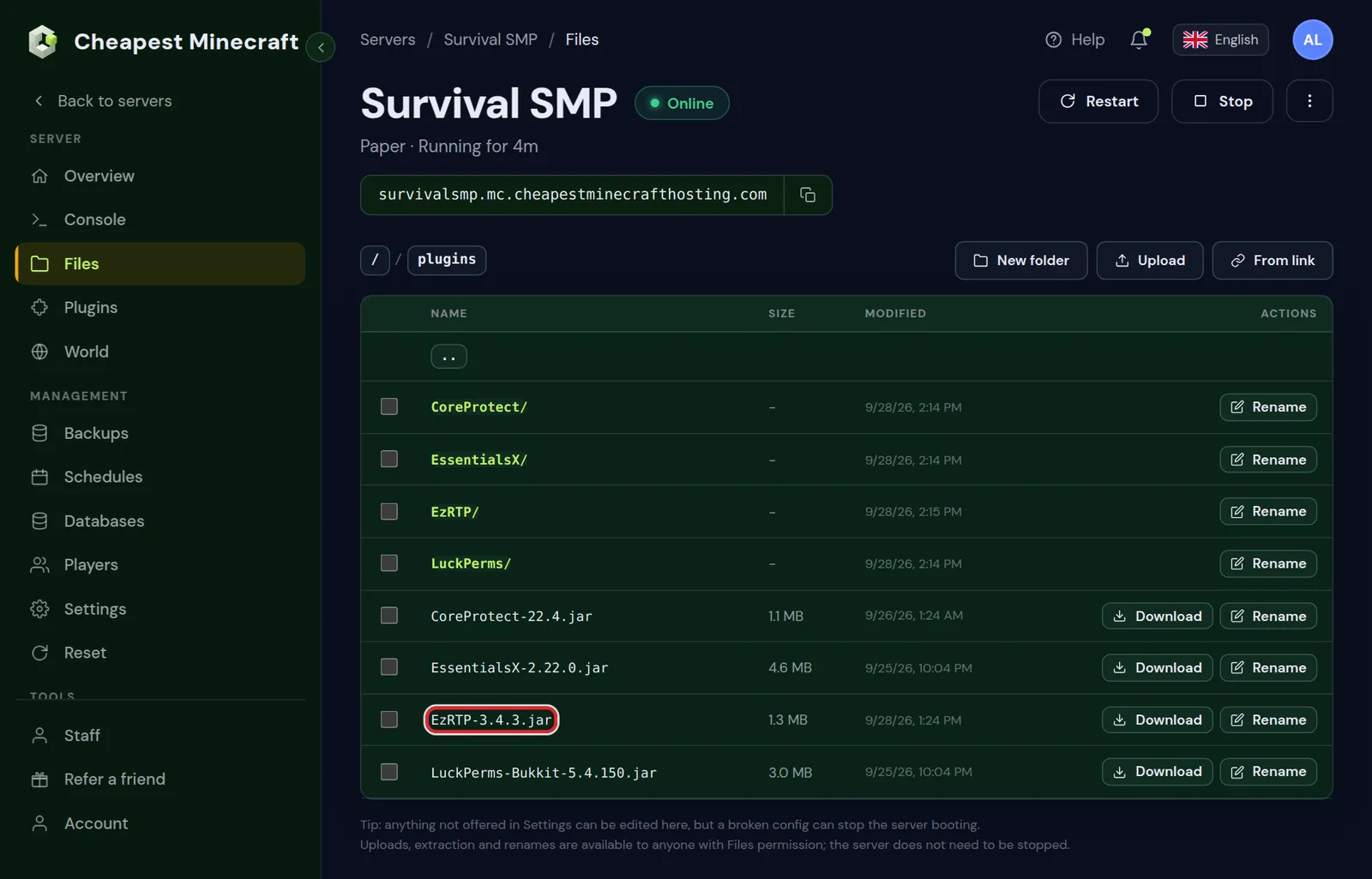
.jar file in plugins. Renaming it to .jar.off turns it off without losing its settings folder.No plugin named in the log, but the problem began after you added several at once? Turn off half of them, start, and repeat with the half that still fails. On a modded server the same trick works in the mods folder.
Before you change anything else, make a backup in the Backups tab. If a fix makes it worse, you can go straight back. Back up and restore your server shows how.
4. Fix a Minecraft config file with a typo
A single wrong character in a config file can stop the server at boot. The log then names the file, often with a line number.
- Open the file in the Files tab with Edit. For the main settings that is
server.propertiesin the top folder. - Go to the line from the error. In
.ymlfiles, look for a tab instead of spaces, or a missing space after a colon. - Save and start the server again.
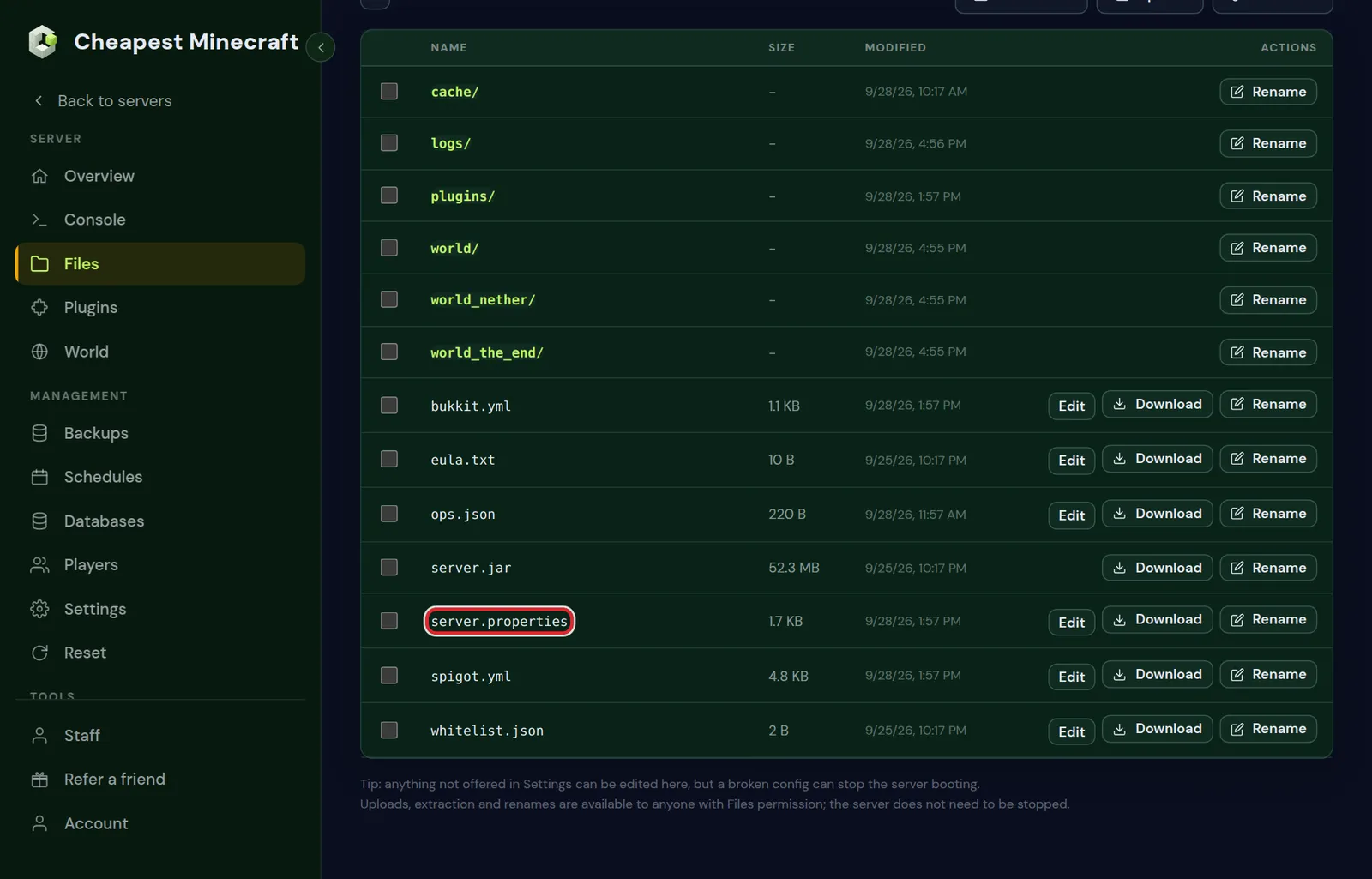
server.properties holds the main settings. Leave server-port as it is: the panel sets it for you.Anything that is also offered in Settings, such as the server type or the Minecraft version, is safer to change there. The panel then writes the file for you, without a typo.
5. Check the Minecraft server software and Java
After a change of Minecraft version, plugins and mods can stop fitting, and an old world can need a newer Java. Settings shows both in one place.
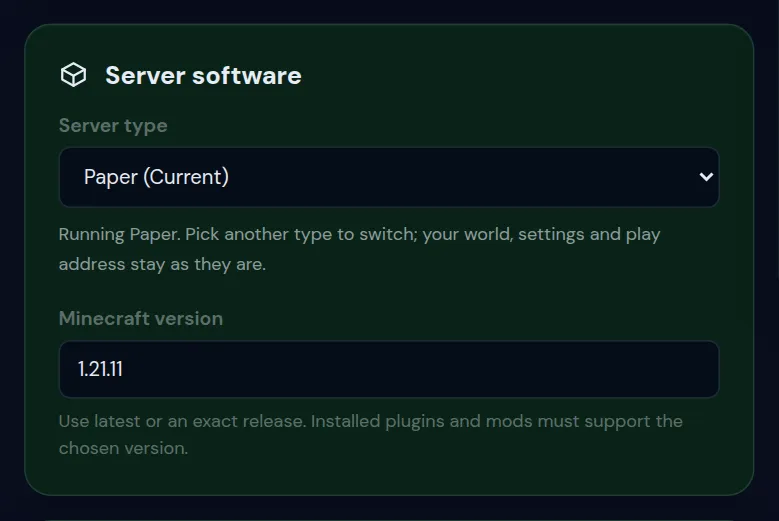
- Under Startup, the Java version shows which Java is recommended for your Minecraft version. A newer Java than needed is almost always fine; an older one will not start the server.
- Changing the Minecraft version sets the matching Java again by itself.
- Both take effect at the next restart, so start the server after saving.
Which Java version your server needs has the full list per Minecraft version.
6. When the Minecraft world itself is damaged
A server that stopped during a save, or a world uploaded half, can leave a region or level.dat file damaged. The log then mentions reading one of those files. The quickest safe fix is your latest backup: stop the server, restore it in Backups, and start again.
No backup? Download the world folder first, so nothing gets lost. Then send us a message from the client area with the error line; we look at it with you.
7. Minecraft server stuck while loading or stopped by the watchdog
Sometimes there is no clear error: the server stays on one line for minutes, or stops itself with a long block of text. These messages explain what happened.
| What the log says | What it means | What to do |
|---|---|---|
Preparing spawn area that does not move for minutes | World generation around spawn, slow on heavy modpacks, or stuck on a damaged chunk | Give a big pack five minutes; if it stays stuck, read the errors above it |
A single server tick took 60.00 seconds and Considering it to be crashed | The watchdog of Minecraft stopped a server that hung for a minute | Find what it hung on in the lines below; raising max-tick-time only hides it |
The server has stopped responding! This is (probably) not a Paper bug. | Paper's watchdog saw the server hang and printed what it was doing | Look in the printed lines for a plugin name; that plugin is the suspect |
Can't keep up! Is the server overloaded? once at startup | Loading took a moment longer than a tick | Nothing; this is normal once |
8. Startup errors on Fabric, Forge and NeoForge servers
Modded servers fail at startup more often than plugin servers, because every mod has to fit the loader, the Minecraft version and the other mods. The usual messages:
- `Incompatible mods found!` on Fabric, or `Missing or unsupported mandatory dependencies` on Forge and NeoForge: a mod needs another mod, or another version of it. The lines below name both.
- `is not a valid mod file`: the file is made for another loader, such as a Fabric mod in the
modsfolder of a Forge server. - A class under `net/minecraft/client` in the error: a mod that only belongs in the players' game is on the server.
- `Crash report saved to`: open that file in the
crash-reportsfolder. Its description says what failed, and Forge and NeoForge add the mods they suspect.
Install mods on a Minecraft server has a table of these errors with the fix for each one.
9. The Minecraft server won't start after a version change
A version change is the moment most servers stop starting, for two reasons.
- Plugins or mods that do not support the new version yet. Turn them off with the
.jar.offtrick and add them back as updates come out. - A world that was opened in a newer version. Paper refuses with
Server attempted to load chunk saved with newer version of minecraft. Worlds cannot go back to an older version; set the newer version again, or restore the backup from before the change.
Switching versions safely goes backup first, then plugins, then the switch itself; change your Minecraft server version walks through it.
10. Get help with a Minecraft server that won't start
Still stuck? Download logs/latest.log and, if there is one, the newest file in crash-reports, and send them with a short note of what changed last. We answer every day between 07:00 and 23:00 CET, and with the log in hand we can usually point at the line straight away.
Questions from Minecraft server owners
My Minecraft server starts and then stops after a minute. Is that the same problem?
Often, yes. Read the log in the same way: the error just before it stops names the cause. If it runs for a while first, lack of memory or a plugin that fails on its first task are the usual suspects.
Does the Minecraft server restart itself when it crashes?
Yes. Crash watch on the Overview tab restarts the server when it crashes or stops responding. A server that fails at every start cannot be fixed by restarting, so then the log is where to look.
Can I undo a change that broke Minecraft server startup?
If you made a backup before the change, restore it in the Backups tab. Otherwise undo the change by hand: rename the new plugin to .jar.off, or put the old value back in the config file.
Do I lose my Minecraft world when I switch server type to fix this?
No. Switching the server type in Settings keeps your world, your settings and your play address. Plugins made for another type may stop loading, which is expected.
Why does my Minecraft server stop at Preparing spawn area?
The server is generating the land around spawn. On a heavy modpack that can take minutes. If it never moves on, look at the errors above that line; a damaged chunk is fixed by restoring a backup.
Where are crash reports saved on a Minecraft server?
In the crash-reports folder in the top folder of the server, one file per crash with the date and time in its name. Open it in the Files tab; the description near the top says what failed.
Why does my Minecraft server say the world was saved with a newer version?
The world was opened in a newer Minecraft version than the server now runs, and worlds cannot go back. Switch the server to the newer version again, or restore the backup made before the update.
How long should a Minecraft server take to start?
A Paper server with a few plugins is usually up well within a minute. A large modpack can take several minutes, especially the first time, when it also generates the spawn area.
Checked against Paper for Minecraft Java 26.2 and our control panel, September 2026. Written by the Cheapest Minecraft Hosting team, first published , updated .