
 Astroworld
Getting started
How to change or update your Minecraft server version
Changing the Minecraft version of your server takes one field in Settings. What needs thought is everything around it: your world, your plugins or mods, and the version your players start the game with.
In short
To change your Minecraft server version, make a backup and check that your plugins or mods support the new version. Then open Settings, set the Minecraft version under Server software to latest or an exact release, save and restart; the world, settings and play address stay. Going back to an older version needs the backup from before the update, and every Java player has to start the game with the version of the server.
Before you change the Minecraft server version
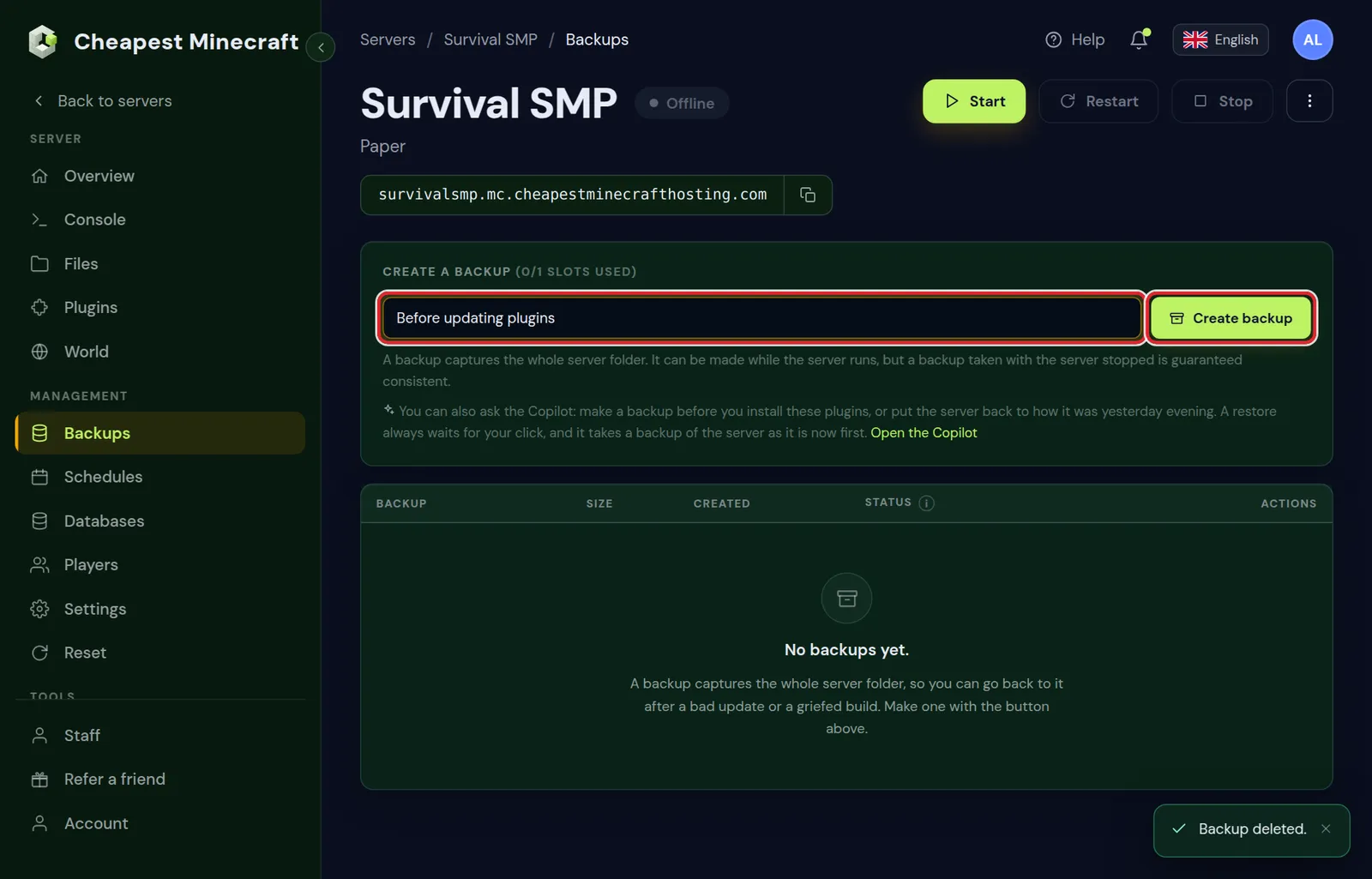
- Make a backup. A world that has been opened in a newer version cannot safely go back to an older one, so the backup is your way back. See back up and restore your server.
- Check your plugins or mods. Each one needs a build for the new version. Their download page lists the versions they support.
- Tell your players. Everyone on Java has to start the game with the same version as the server.
Change the Minecraft version in Settings
- Open the control panel of your server and go to Settings.
- Under Server software, set Minecraft version to
latestfor the newest release, or type the exact release you want. - Save the change. The matching Java version is set with it.
- Restart the server and watch the Console. The first start on a new version takes a little longer while the world is upgraded.
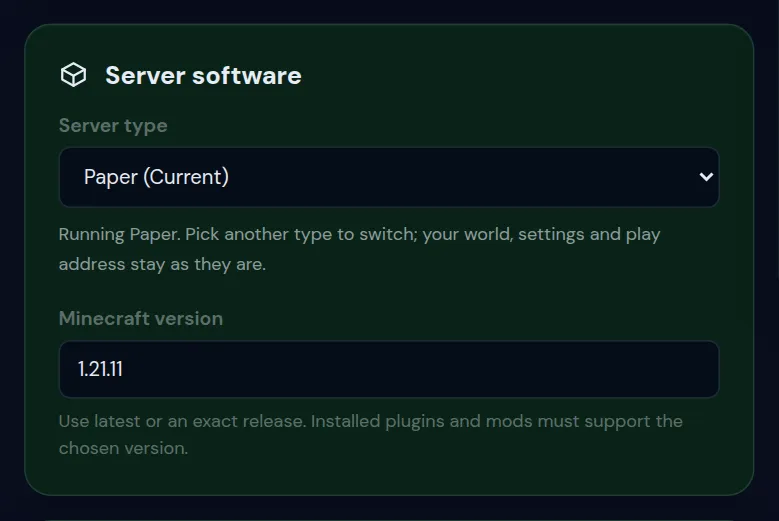
latest or an exact release. Installed plugins and mods must support the version you choose.Your world, settings and play address stay as they are. Only the server software changes. Which Java version your server needs explains the Java side, in case you ever set it by hand.
Minecraft versions you can run, and what each is good for
These Java versions can be picked for a server. The Java version that belongs to each one is set for you.
| Minecraft version | Java | Why people pick it |
|---|---|---|
latest, 26.2, 26.1.2, 26.1.1 | Java 25 | The newest blocks, mobs and features |
| 26.3 | Java 25 | The very newest release, for Vanilla and Fabric while Paper catches up |
| 1.21.11, 1.21.8, 1.21.4 | Java 21 | Plugin servers that wait for their plugins to support 26.x |
| 1.21.1 | Java 21 | Many current NeoForge modpacks |
| 1.20.6, 1.20.4 | Java 21 and Java 17 | Older plugin servers and smaller modpacks |
| 1.20.1 | Java 17 | A large share of Forge modpacks, many of them built around Create |
| 1.19.4, 1.18.2 | Java 17 | Modpacks and maps made for those versions |
| 1.16.5 | Java 8 | Classic Forge modpacks |
| 1.12.2 | Java 8 | Old tech and magic modpacks |
| 1.8.9 | Java 8 | Classic PvP from before the attack cooldown |
1.20.6 runs on Java 21 and 1.20.4 on Java 17; the panel takes care of the difference. The Java version for each Minecraft version has the full table.
Minecraft version numbers explained: from 1.21.11 to 26.1
After 1.21.11, Mojang switched to version numbers based on the year. 26.1 is the first big release of 2026, 26.2 the second, and so on. A third number, as in 26.1.2, is a smaller fix release of that version.
For a server the rule stays the same: the server and the players' game need the same version, or a plugin such as ViaVersion that bridges the difference.
Updating: what happens to your Minecraft world
When a newer version loads your world for the first time, it converts the saved chunks to the new format. Land you already explored keeps its shape. New biomes, blocks and structures from the update appear in chunks generated after the update, so players have to travel to new land to find them.
Pre-generated land counts as explored. If you pre-generated a large area, new terrain features only appear outside it.
How to get new biomes and structures in an old Minecraft world
Since 1.18, Minecraft blends the edge between old land and newly generated land, so the border between the two looks natural. Still, the new features only appear where land is generated for the first time. Three ways to get them:
- Travel further out. Everything beyond the explored area is generated with the new version.
- Widen the world border and pre-generate the new ring, so players find fresh land close to home.
- Remove chunks nobody used. With a backup in hand, a tool such as MCA Selector can select the chunks players spent only a few minutes in and delete them. Minecraft generates them again with the new version, while bases stay untouched.
Removing chunks cannot be undone without the backup. Download the world first, and try it on a copy before you upload the result.
Going back to an older Minecraft version
Minecraft does not support opening a world in an older version than the one it was last played on. The server may start, but chunks, items and entities can break or disappear.
- Set the older version in Settings.
- Restore the backup you made before the update, from the Backups tab.
- Start the server.
If you have no backup from before the update, a fresh world on the older version is the only clean option.
Plugins and mods after a Minecraft version change
- Paper and Purpur: most plugins keep working across the small releases of one version, but a big update often needs new builds. Update them in the Plugins tab. A plugin that is not ready yet shows errors in the console at startup and stays off.
- Fabric, Forge and NeoForge: every mod needs a build for the exact Minecraft version and loader. Most Fabric mods also need the Fabric API for that version.
- Modpacks: do not change the Minecraft version by hand. Pick a newer version of the pack instead, as in install a modpack; that sets the right loader and Minecraft version for you.
On the day a big update comes out, vanilla and Fabric are usually ready first. Paper and many plugins need some days or weeks. If your server depends on plugins, wait until each of them lists the new version.
Fix Incompatible client, outdated client and outdated server
| What players see | What it means | Fix |
|---|---|---|
| Incompatible client! Please use and a version number | The player's game and the server run different versions. | Start the game with the version the message names. |
| Outdated client, in older versions of the game | The player's game is older than the server. | Update the game in the launcher. |
| Outdated server, in older versions of the game | The server is older than the player's game. | Update the server, or let the player start the server's version. |
| The server's version in red in the server list | The same mismatch, seen before joining. | The same fixes. |
To play an older version in the Minecraft Launcher, open Installations, click New installation, choose the server's version and click Create. Start the game from that installation.
On Paper and Purpur, the ViaVersion plugin lets players with a newer game join an older server, and ViaBackwards does the reverse. Mods cannot be bridged like that: on a modded server every player needs the server's exact version. Can't connect to your server covers the other reasons a join fails.
Update a Bedrock or crossplay server
Bedrock players update automatically, so a Bedrock or crossplay server has to keep up rather than choose a version.
- Crossplay: the server is Java, so its version follows the steps above. What has to follow Bedrock is Geyser. Update Geyser and Floodgate in the Plugins tab when Bedrock players suddenly cannot join after a Bedrock update.
- Bedrock: when players see that the server is outdated, select the newest version under Server software in Settings and restart. Our support team can help if the newest Bedrock release is not listed yet.
When Geyser falls behind a new Minecraft version, Bedrock players are the first to be turned away; Java and Bedrock crossplay explains why.
Questions from Minecraft server owners
Will updating my Minecraft server delete the world?
No. The world is converted the first time the new version loads it. Make a backup first all the same, because going back to the older version needs that backup.
How do I see which version my Minecraft server runs?
In Settings under Server software, and in the first lines of the Console when the server starts.
Should I update my Minecraft server as soon as a new version comes out?
Only when everything you use is ready. A vanilla server can update on day one. A server with plugins or mods is better off waiting until each of them lists the new version.
Can players on different Minecraft versions play together?
Not on a plain server. On Paper or Purpur, ViaVersion and ViaBackwards let nearby versions join the same server. On a modded server everyone needs the same version.
What does 26.1 mean in Minecraft?
Since 2026 Minecraft versions are numbered by year: 26.1 is the first big release of 2026 and 26.2 the second. It comes after 1.21.11 and needs Java 25 on the server.
Why are the new biomes missing after I updated my Minecraft server?
New features only appear in land that is generated after the update. Explore further out, widen the world border, or remove unused chunks from a copy of the world so they are generated again.
Do I need to update my plugins after a Minecraft update?
After a big update, usually yes. Check the Updates box in the Plugins tab, and wait with the server update until every plugin you depend on lists the new version.
Which Minecraft version is best for a modded server?
The one your modpack or mods are made for. Today that is often 1.21.1 for NeoForge packs and 1.20.1 for Forge packs; check the pack page before you set the version.
Checked against the Settings and Backups tabs of our control panel, September 2026. Written by the Cheapest Minecraft Hosting team, first published , updated .