
 Astroworld
Getting started
Move your Minecraft world or server to a new host
You do not have to start over. A world you built alone, or a server you ran somewhere else, can be moved here with everything in it: builds, inventories, plugin data and settings.
There are two routes. Moving a whole server is one step in the panel. Uploading a singleplayer world takes a few more, mostly because of folder names.
In short
To move a Minecraft server to a new host, make one .zip or .tar.gz of the old server folder, get a download link to it and paste that link under Move a server from another host in the Files tab: the panel backs up what is there now, downloads the archive and unpacks it. For a singleplayer world, zip its folder from saves, upload and extract it in Files, and give the folder the exact name in level-name, usually world.
Before you start moving your Minecraft world
- Match the version. A world can move to the same or a newer Minecraft version, never to an older one. Set the server to at least the version the world was last played on.
- Match the software. A Forge or Fabric world with modded blocks needs the same mods on the new server, or those blocks disappear.
- Stop the old server before you download, so nothing is written halfway through the copy.
Route 1: move a whole Minecraft server
Use this when you ran a server at another host or at home and want all of it here: the world, plugins, their settings and the player data.
- At your old host, make one archive (a .zip or .tar.gz) of the server folder. Most hosts have a backup or download button that does this.
- Get a download link to that archive. A link from the old host's backup page works, as does a shared link from a cloud drive that downloads the file directly.
- In your new server, open the Files tab and find Move a server from another host.
- Paste the link and start. The panel stops the server, makes a backup of what is there now, downloads the archive and unpacks it.
- Check the files, then choose to put them in place. The server starts with your old world.
The backup made in step 4 is your way back. If something looks wrong after the move, restore it in the Backups tab.
Already uploaded the archive yourself? The same card lets you pick an archive that is on the server instead of a link.
Get one archive of your old Minecraft server
| Where the server runs now | How to get one archive |
|---|---|
| At a host with a backup button | Make a fresh backup after stopping the server, then download it or copy its download link |
| At a host without backups | Download the server folder with SFTP and zip it on your computer |
| On your own computer | Stop the server and zip the whole server folder |
| In a Realm | Download the world from the Realm first; see the Realm part below |
A link from a cloud drive must download the file itself, not open a preview page. Paste it into a private browser window first: when the file starts downloading straight away, the panel can fetch it too.
Which files to bring when you move a Minecraft server
| File or folder | What it holds | Bring it? |
|---|---|---|
world, world_nether, world_the_end | Your overworld, Nether and End dimensions | Yes |
plugins | Plugin jars, each with a folder of settings and data | Yes, on Paper, Purpur or Spigot |
mods and config | Mods and their settings | Yes, on Fabric, Forge or NeoForge |
server.properties | Game mode, difficulty, view distance and the rest | Yes; check that level-name matches your world folder |
whitelist.json, ops.json, banned-players.json, banned-ips.json | Who may join, who is op and who is banned | Yes |
usercache.json | Names and IDs of players who joined before | Optional; the server builds it again |
logs, crash-reports, cache, libraries, versions | Old logs and files the server downloads again | No |
| The server jar | The server software itself | No: set the type and version under Settings, Server software |
Leaving out the logs and downloaded files makes the archive smaller, so the move is quicker. Everything that holds your world, your players or your settings comes along.
Route 2: upload a singleplayer Minecraft world
Your singleplayer worlds are on your computer in the Minecraft folder, under saves. Each world is a folder with a level.dat file inside.
| System | Where saves are |
|---|---|
| Windows | %appdata%\.minecraft\saves |
| Mac | ~/Library/Application Support/minecraft/saves |
| Linux | ~/.minecraft/saves |
- Stop your server in the Console tab.
- In Files, look at
server.propertiesfor the linelevel-name. By default it saysworld. That is the folder the server loads. - Rename the old
worldfolder on the server, or delete it if it has nothing you need. - Zip your singleplayer world folder on your computer, upload the zip in Files and choose Extract on it.
- Rename the extracted folder to exactly the
level-namevalue, soworld. - Start the server.
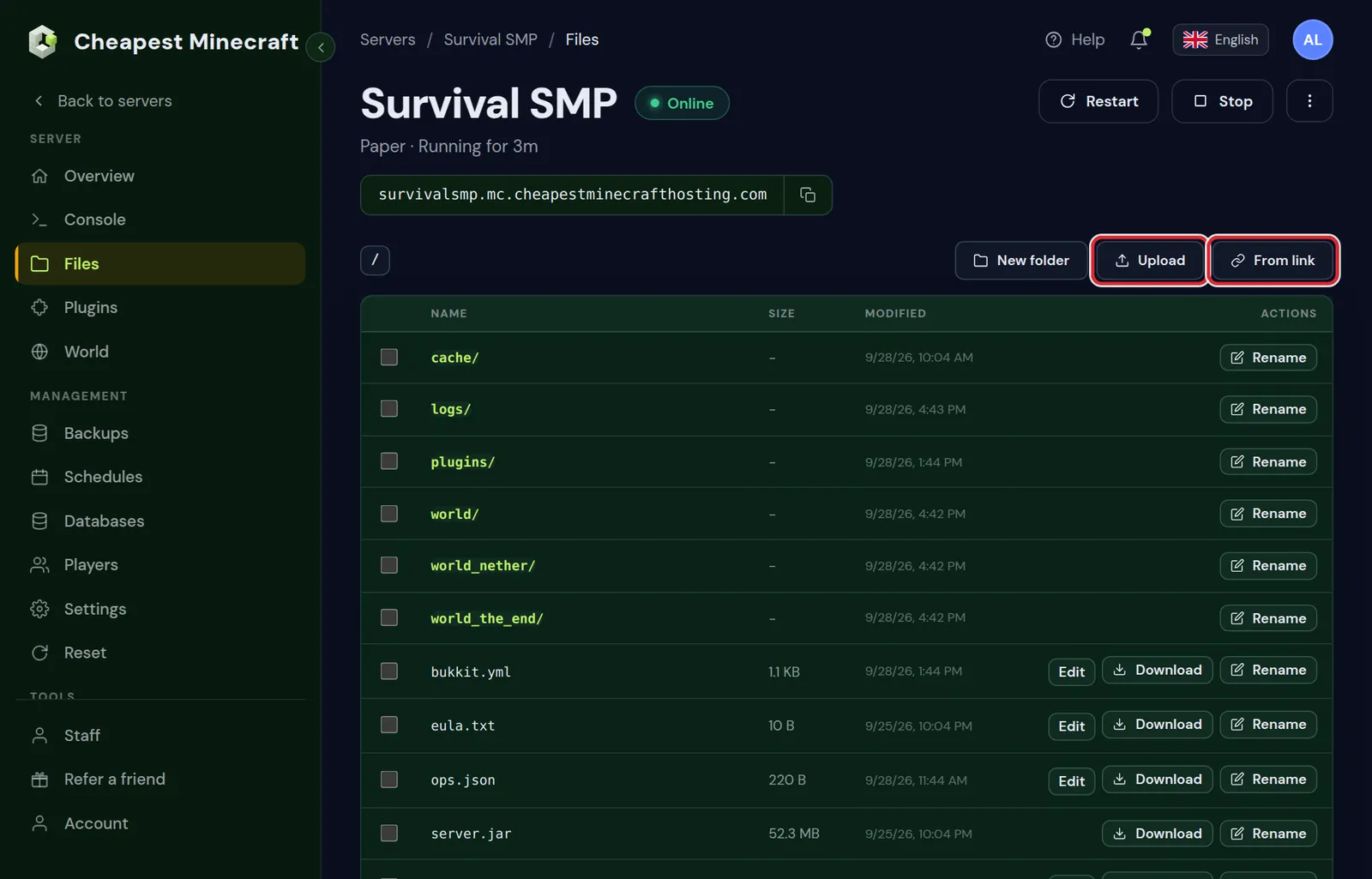
For large worlds, uploading through the browser is slow. Two faster ways: put the zip on a cloud drive and paste its download link under From link in the Files tab, so the server fetches it itself with no size limit, or set an SFTP password in the Files tab and use an SFTP program such as FileZilla or WinSCP with the details shown there.
Move a Minecraft Realm to your own server
A Realm can be downloaded as a world and then uploaded here like any singleplayer world.
- Java: open Minecraft Realms in the game, choose your Realm, open its settings and go to the backups of the world.
- Click Download latest. The game saves the Realm as a new world in your
savesfolder. - Bedrock: edit the Realm, open its game settings and choose Download World. Then export that world from your world list as a
.mcworldfile. - Upload the result as in route 2 above, or for Bedrock as in the Bedrock part below.
Your Realm stays as it is, so friends can keep playing there until the new server is ready. Download it once more right before you switch, so the last builds come along.
Where the Nether and the End of your Minecraft world went
A singleplayer save, like a vanilla server, stores both extra dimensions within its one folder, in subfolders named DIM-1 (Nether) and DIM1 (End). Paper, Purpur and Spigot want them as folders of their own beside the overworld: world_nether and world_the_end.
When you upload a singleplayer world to a Paper server, Paper moves the two dimensions into their own folders on the first start. Let that start finish before you judge whether the Nether is there.
Moving Bedrock Minecraft worlds
A Bedrock world exported from the game is a .mcworld file, which is a zip under another name. Rename it to .zip, upload it in Files, extract it into the worlds folder, and set level-name in server.properties to the name of that folder.
Move a modded Minecraft world or a modpack server
A modded world only loads with the same mods it was made with. Moving it goes best in this order:
- Install the same pack at the same version first, from Mods, CurseForge and FTB packs, with Install this pack, or the same loader with the same mods by hand.
- Start the server once so all folders exist, then stop it.
- Upload the world folder of the old server and give it the name in
level-name. - Copy the
configfolder too if settings were changed on the old server. On Forge and NeoForge theserverconfigfolder inside the world comes along with the world. - Start the server and read the console for missing mods before anyone joins.
A world started without one of its mods loses the blocks and items of that mod for good. Keep the backup the panel made until you have walked around and checked.
Install a modpack explains how to find the exact pack version, and join a modded server is the page to send your players.
After the move to your new Minecraft server
- Join and walk around your builds. Check a chest or two.
- If the server moved from another host, check that plugins load: the console lists each one at startup.
- Tell your players the new address. How to join your server is a page you can send them.
- Make a fresh backup now that everything is in place.
Fix common problems after moving a Minecraft world
| What you see | Cause | Fix |
|---|---|---|
| A brand new world | level.dat sits one folder too deep, such as in world/world | Move the inner folder up so level.dat is right inside world |
| Players start with an empty inventory | The old server ran with online-mode off, so its player files are named after other IDs than the real accounts | The items are still in playerdata; each file can be renamed to the real ID of that player |
| Plugins have lost their settings | Only the jars came along, not the folders beside them | Copy the folders inside plugins from the old server too |
| Blocks from mods are gone | The world was started without one of its mods | Restore the backup, add the missing mod and start again |
| The server will not load the world | The world was last played on a newer Minecraft version | Set the server to that version or newer under Settings, Server software |
Still stuck? The console usually names the problem in the first minute after a start. Minecraft server won't start goes through the messages one by one.
Questions from Minecraft server owners
My Minecraft world loads but everything is new. What happened?
The server made a fresh world because the folder name did not match level-name in server.properties. Stop the server, rename your folder to that exact name, and start again.
Can I move a Minecraft world from a newer version to an older server?
No. Minecraft can upgrade a world, not downgrade it. Set the server to the version the world was last opened in, or newer.
Do players keep their inventories when I move the Minecraft world?
Yes, if the playerdata folder inside the world comes along. Player data is stored per account, so everyone finds their items where they left them.
How big a Minecraft world can I upload?
As big as the storage of your plan allows, with room left for backups. For worlds of several gigabytes, SFTP is faster and more reliable than the browser.
Can I move my Minecraft Realm to my own server?
Yes. Download the latest backup of the Realm in the game, which saves it as a singleplayer world, then upload that world as described in route 2.
Do I need the server jar from my old host?
No. Choose the same server type and version under Settings, Server software, and the panel installs the software. Only the world, plugins, mods and settings files need to move.
My world is inside two folders after extracting. Is that a problem?
Yes. The level.dat file must sit directly in the folder named in level-name. Move the inner folder up one level and remove the empty outer one, or the server makes a new world.
Does plugin data come along when I move my server?
Yes, when you bring the whole plugins folder. Every plugin keeps its settings and data, such as claims, homes and money, in a folder next to its jar.
Checked against Minecraft Java 26.2 and our control panel, September 2026. Written by the Cheapest Minecraft Hosting team, first published , updated .