
 Astroworld
Getting started
Billing, invoices and renewals for your Minecraft server
Everything about paying for your server is in the client area: when it renews, your invoices, the card or account you pay with, and the company details on your invoice.
You choose 1, 6, 12 or 24 months. 6, 12 and 24 months are fixed terms that you pay monthly, and a longer term costs less per month. After the fixed term your server continues month to month until you cancel.
In short
Everything about paying for your Minecraft server is under Billing in the client area. Click Open billing portal to download any invoice as a PDF, change the card or account you pay with, or cancel. A monthly server renews every month until you cancel. A longer term costs less per month (10% on 6 months, 15% on 12, 20% on 24), and after the first term every server continues month to month. Company details and a VAT number go on the Account page, under Personal or business.
See when your Minecraft server renews
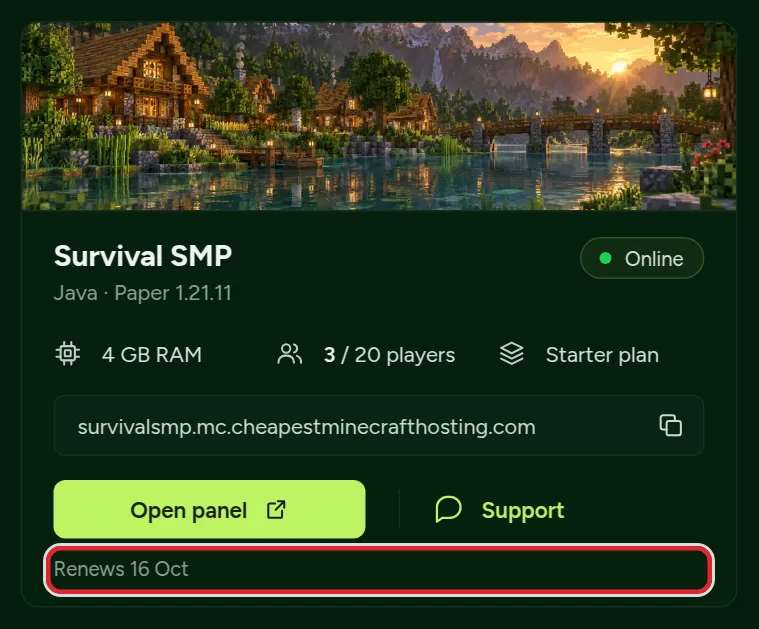
Your server card on the Dashboard shows the plan and the date it renews next.
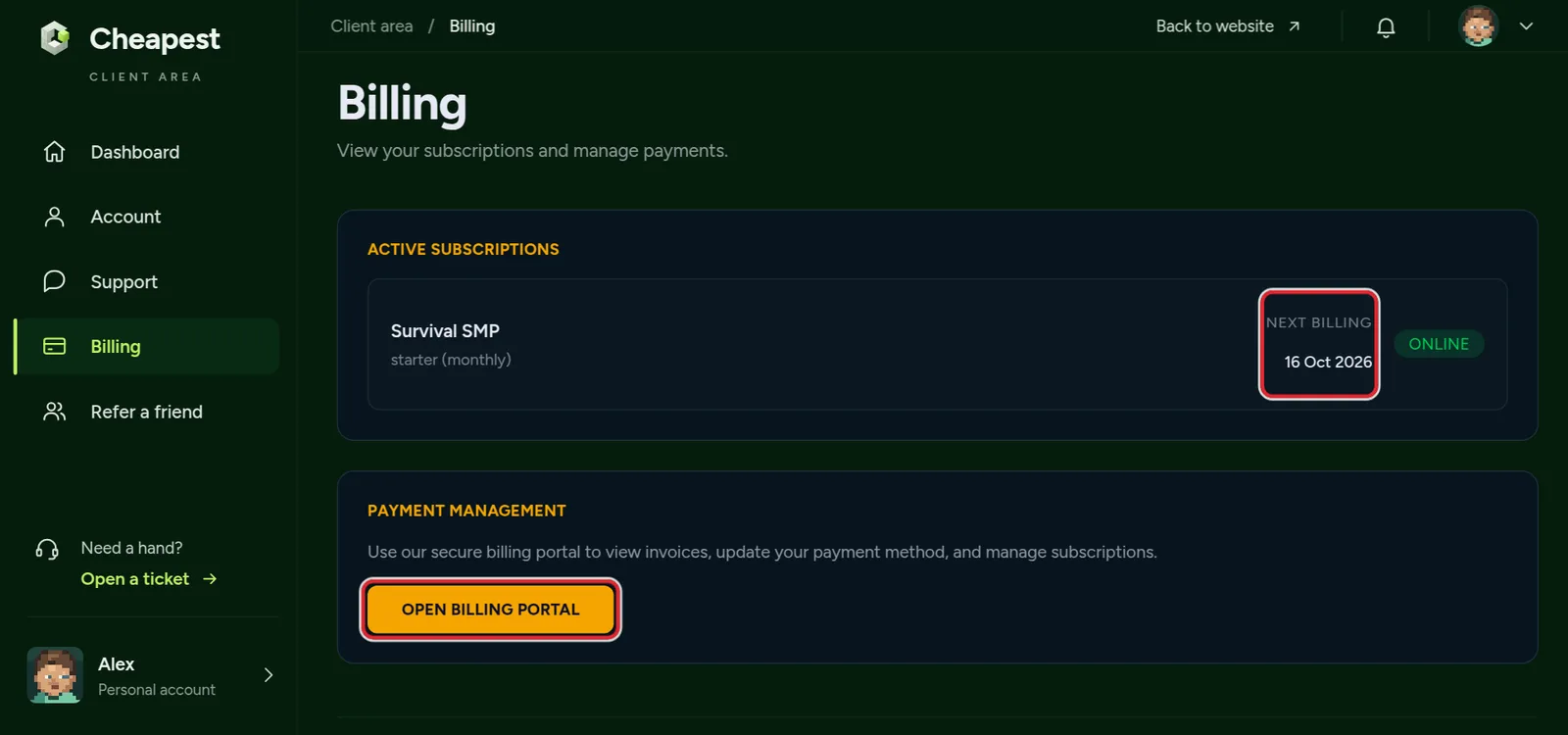
The Billing page, in the menu on the left, lists every active subscription with its next billing date, so you see all your servers in one place.
The Billing page: active subscriptions and all servers
The Billing page has two lists. Active Subscriptions shows every server that renews by itself, with its Next Billing date and a status. All Servers lists every server on your account, a suspended one included.
| Status | What it means |
|---|---|
| Setting up... | The order is paid and the server is waiting to be created |
| Provisioning... | The server is being created right now; give it a minute |
| Online | The server is running |
| Offline | The server is stopped; start it from the panel |
| Suspended | The server is stopped until the open invoice is paid |
A suspended server drops off Active Subscriptions and stays under All Servers until the open invoice is paid. The page only shows servers you own; a server where you are staff is billed to its owner.
Inside the panel, the Account tab of a server shows its plan, status, next payment and recent invoices. Click Edit on the Overview to add the Next payment widget as well, which shows when the next payment is due and how much it is.
Minecraft server renewal dates for each term
Every server has its own subscription and its own date, counted from the day of the order. For a server ordered on 16 September:
| Term | Renews | Next renewal |
|---|---|---|
| 1 month | Every month on the same day | 16 October |
| 6 months fixed | Every month, for at least six months | 16 October |
| 12 months | Once for the year, then every month | 16 September next year |
| 24 months | Once for two years, then every month | 16 September two years later |
A longer term costs less per month: 10% off on 6 months, 15% on 12 months and 20% on 24 months. On 6 months fixed you can cancel any time, and the server stops at the end of month 6 at the earliest. A server ordered on the 31st renews on the last day of shorter months, and two servers ordered on different days renew on different days.
Download Minecraft server invoices and change your payment method
- Open Billing in the client area menu.
- Click Open billing portal. It opens our secure billing portal.
- Under invoice history, open any invoice to view or download it as a PDF.
- To pay with another card or account, add the new payment method there and make it the default.
A new payment method is used from the next renewal on. There is nothing else to do on your server.
What you can do in the billing portal
- Invoices: every invoice your account has had, each one to open or download as a PDF.
- Payment method: add a new card or account and make it the default for the next renewal.
- Subscriptions: see the subscription of each server and cancel one, as described below.
Payments are handled by our payment provider, and we never see or store your full card number.
Billing belongs to the account that owns the server. Paying for a friend? The owner has to sign in and open the portal, because staff members do not see the billing of a server they help run.
Put your company on the Minecraft server invoice
Buying for a company, a school or a club? Add the details once and they appear on every invoice after that.
- Open Account in the client area menu.
- Under Personal or business, choose Business.
- Fill in the company name, the country the company is in and, inside the EU, the VAT number.
- Click Save business details.
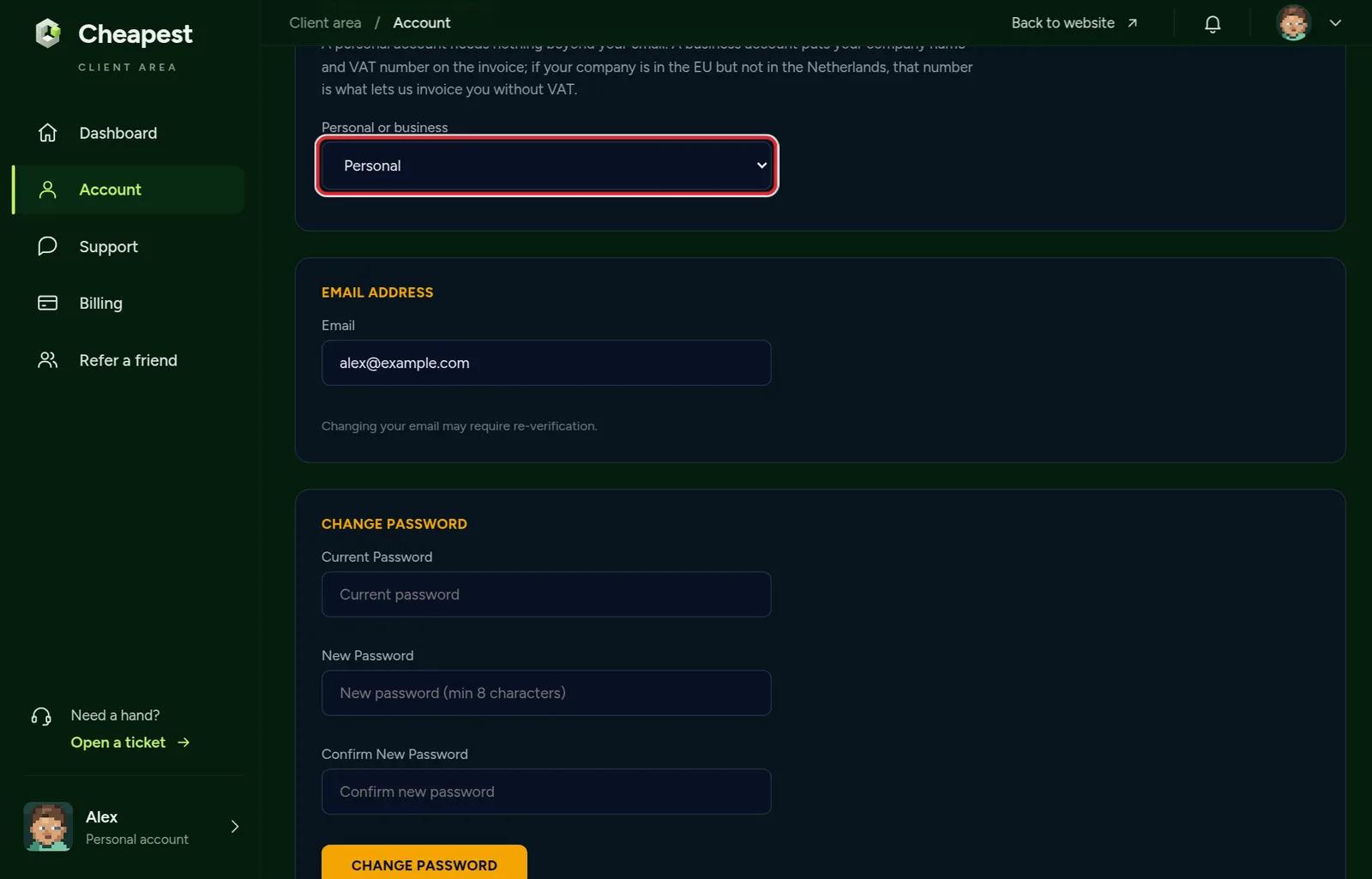
- The VAT number is checked with the European register. Once it is confirmed, the page says so.
- Is your company in the EU but not in the Netherlands? Then that confirmed VAT number lets us invoice you without VAT.
- Outside the EU there is usually no VAT number. Leave the field empty if you do not have one.
- The Chamber of Commerce number is optional and has no effect on the VAT.
VAT on your Minecraft server invoice
Prices include VAT: the price you see before you pay is the price you pay. Whether VAT is on the invoice depends on who buys:
| You buy as | VAT on the invoice |
|---|---|
| A person | Included in the price |
| A company in the Netherlands | Included in the price, with your company details on the invoice |
| A company in another EU country with a confirmed VAT number | No VAT, under the reverse charge |
The reverse charge needs a confirmed number, so read the line under the VAT field after you save:
| Message | What to do |
|---|---|
| VAT number confirmed by the European register. | Nothing; the number is used from the next invoice on |
| The European register has not answered yet. We keep checking. | Nothing; the register is sometimes slow and the check runs again by itself |
| The European register does not know this number. Check it, the invoice depends on it. | Look for a typo, check the country code at the start of the number and save again |
When a Minecraft server payment fails
Cards expire and banks sometimes decline a payment. When a renewal does not go through, we try again over the following days and your server keeps running meanwhile. The Overview tab of your panel then says so, with a Pay now button.
- Pay the open invoice, or update your payment method in the billing portal, and nothing changes for your players.
- If all attempts fail, the server is suspended: it stops and players cannot join. Your files are kept for 14 days.
- Pay the open invoice within those 14 days and the server comes back as it was.
Why a Minecraft server payment is declined
| Cause | What to do |
|---|---|
| The card expired or your bank replaced it | Add the new card in the billing portal and make it the default |
| Your bank wants you to approve the payment | Approve it in your banking app, or pay the open invoice yourself |
| Not enough balance, or a spending limit was reached | Top up or raise the limit, then pay the open invoice |
| Your bank blocks online or international payments on the card | Allow them in your banking app, or use another payment method |
While a payment is open, the Overview tab of your panel says: Your last payment did not go through. Your server keeps running for now, but it stops when the payment provider gives up retrying. The button next to it pays the open invoice in one go and shows its amount. Only the owner of the server sees that button.
Bring a suspended Minecraft server back online
- Open the panel of the server. The Overview tab says: This server is suspended. Settle the outstanding invoice to bring it back online.
- Click the pay button next to that line and pay the open invoice.
- Wait a moment and refresh. The server comes back as it was, with the same world, plugins and settings.
Do this within 14 days of the suspension. After that the server and its files are deleted, and paying cannot bring them back.
Cancel your Minecraft server
- Open Billing and click Open billing portal.
- Find the subscription of the server and cancel it there.
- You get an email that confirms the cancellation.
Cancelling stops the next renewal. Your server keeps running until the end of the period you already paid for. After that it is suspended, and its files are kept for 14 more days in case you change your mind. After those 14 days the server and its files are deleted for good.
Want to keep your world? Download it from the panel before your last paid day, while the server still runs. Back up and restore your server shows how to take a copy home.
What happens after you cancel, day by day
| When | What happens |
|---|---|
| The day you cancel | Nothing changes for your players; an email confirms the cancellation |
| Until your last paid day | The server runs as normal, so there is time to download the world |
| When the paid term ends | The server is suspended: it stops and players cannot join |
| 14 days later | The server and its files are deleted for good |
Changed your mind within those 14 days? Contact us from the support page while the files are still there. Deleting your whole account cancels every active subscription at once; account settings and two-factor shows where that is.
Refunds and the 14 day right of withdrawal
Cancelling stops the next payment, but the rest of a running term is not refunded: the server stays yours until that term ends.
As a consumer in the European Union you may withdraw within 14 days of ordering, without giving a reason. Because your server is set up straight away, you pay for the days it was yours and get the rest of that payment back. Send the request from the email address on your account. Orders placed as a business do not have this right.
The full wording is in our terms.
Price changes and the term you already paid
A term you have already paid for never changes in price. If prices change for future terms, you hear it at least 30 days before, and you can cancel before the new price applies. So a fixed term of 6, 12 or 24 months also fixes your monthly price for that whole period.
Questions from Minecraft server owners
Is it cheaper to pay for a longer period for my Minecraft server?
Yes. 6 months costs 10% less per month, 12 months 15% less and 24 months 20% less. All three are fixed terms paid monthly, with nothing paid up front. After the fixed term every server continues month to month at the same monthly price.
Where do I find an old Minecraft server invoice?
Open Billing in the client area and click Open billing portal. Every invoice is listed there and can be downloaded as a PDF.
Can I get an invoice for my Minecraft server with my company name?
Yes. Choose Business under Personal or business on the Account page, fill in your company details and save. Every invoice after that carries them.
What happens to my Minecraft world if I cancel?
The server runs until the end of the period you paid for. Then it is suspended and kept for 14 days, and after that it is deleted. Download your world before your last paid day if you want to keep it.
My payment failed. Is my Minecraft server gone?
No. It keeps running while the payment is tried again. If it ends up suspended, pay the open invoice within 14 days and it comes back as it was.
Do Minecraft server prices include VAT?
Yes. The price you see before you pay is the price you pay, including VAT. A company in another EU country with a confirmed VAT number is invoiced without VAT, under the reverse charge.
Can I get a refund on my Minecraft server?
The rest of a running term is not refunded when you cancel. As a consumer in the EU you may withdraw within 14 days of ordering: you pay for the days the server was yours and get the rest back.
Will my Minecraft server cost more when it renews?
Not for a term you already paid for. If prices change for future terms, you hear it at least 30 days before and can cancel before the new price applies.
Do you keep my card details?
No. Payments are handled by our payment provider, and we never see or store your full card number.
Why is my Minecraft server suspended?
Usually because a renewal could not be paid after several tries. Pay the open invoice within 14 days with the button on the Overview tab of your panel and it comes back as it was.
Can a staff member pay for my Minecraft server?
No. Billing belongs to the account that owns the server. Staff members do not see its billing or the payment button.
Checked step by step in our client area, September 2026. Written by the Cheapest Minecraft Hosting team, first published , updated .