
 Astroworld
Performance
Minecraft server startup settings: Java version and start file
A Minecraft Java server starts the same way every time: Java opens one .jar file, and that file loads the game, the plugins or mods and the world. Which Java runs and which file it opens are the two startup settings you choose yourself in our control panel.
This guide covers the Startup card on the Settings tab: each option, what the panel sets for you, what you cannot change there, and how to fix a server that stops after a change.
In short
The startup settings of a Minecraft server are the Java version it runs on and the .jar file it starts from. In our control panel both are in the Startup card on the Settings tab: pick a value, click Save and restart the server, because each change applies at the next start. Memory follows your plan, and the server type and Minecraft version are set in the Server software card above it.
Where to find the Minecraft server startup settings
- Open your server in the control panel.
- Click Settings in the menu on the left.
- Scroll to the Startup card. It sits under Server software, the card with the server type and the Minecraft version.
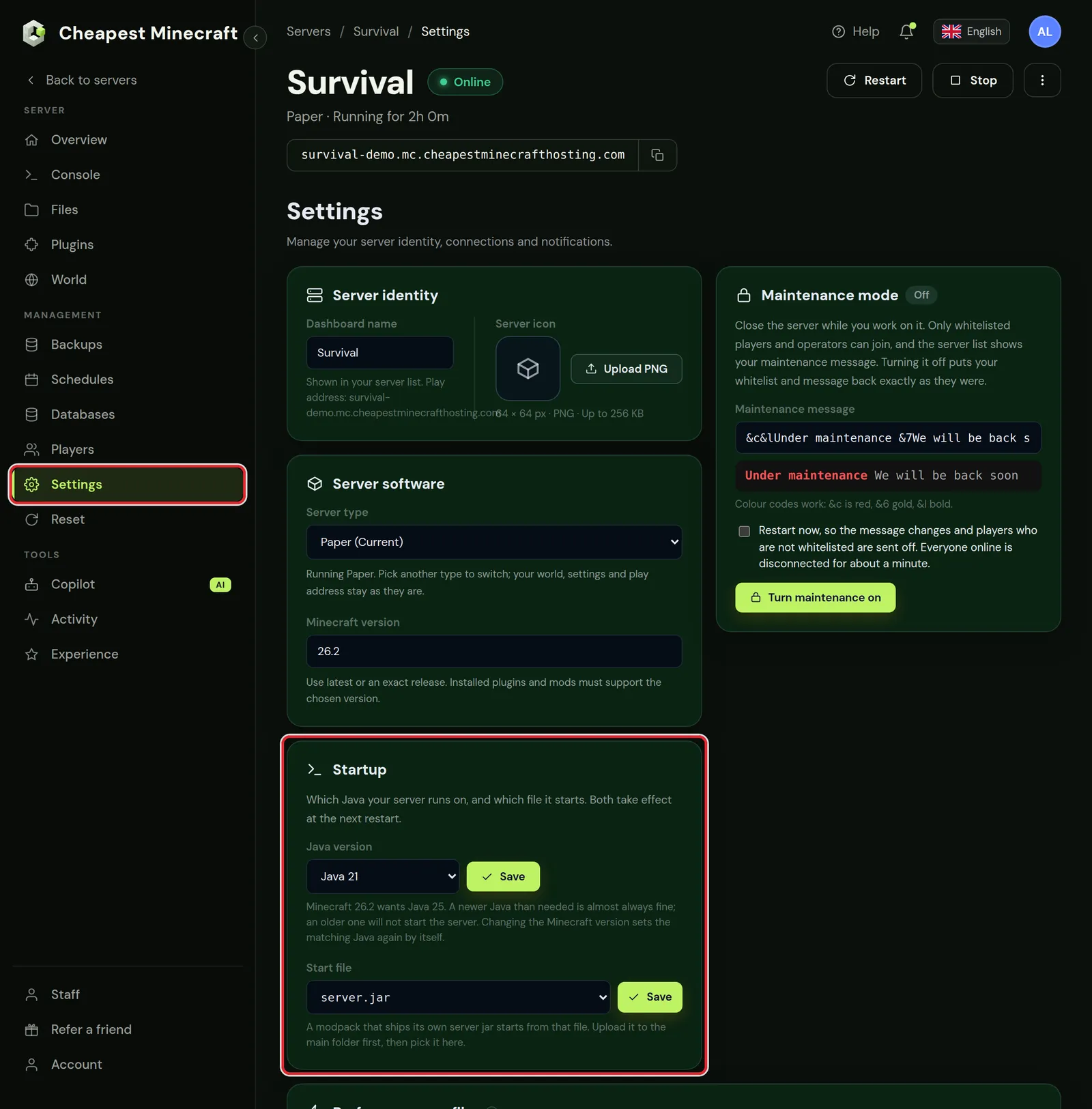
The line under the Java list names the Java your Minecraft version wants. Compare it with the Java selected above it. In this screenshot Java 21 is selected while Minecraft 26.2 wants Java 25, so this server will not start until Java 25 is saved.
The card only appears on servers that run on Java. A Bedrock server has no Startup card, because the Bedrock server software does not use Java. Team members need the Settings permission to use it; give someone access to your server explains the permissions.
What you can set at startup on a Minecraft server
The Startup card has two options. The server type and the Minecraft version in the card above it also decide what happens at startup, so they are in this table as well.
| Setting | Card | What it decides | When it applies |
|---|---|---|---|
| Java version | Startup | Which Java runs the server: Java 8, 11, 16, 17, 21 or 25 | At the next restart |
| Start file | Startup | Which .jar file in the main folder Java opens | At the next restart |
| Server type | Server software | Paper, Purpur, Vanilla, Fabric, Forge or NeoForge | The server stops for a few minutes while the new files are fetched; the world stays |
| Minecraft version | Server software | latest or an exact release such as 26.2 or 1.21.4 | The server stops and that version is installed, after a backup if your plan has backup slots |
Each Save button in the Startup card stays grey until you pick a value that differs from the current one. You can save a Java or start file change while the server runs. The running server keeps its old setting until it restarts.
Changing the type or the version has its own steps and risks for plugins, mods and the world. Change the Minecraft server version and Paper, Purpur or Spigot cover those.
How to change the Java version of a Minecraft server
- In Settings, go to the Startup card.
- Open the Java version list. The Java that fits your Minecraft version has
(recommended)after it. - Pick a version and click Save. The card confirms with
Java changed. It takes effect at the next restart. - Restart the server with Restart at the top of the panel or in the Console tab.
The help line under the list gives the rule: a newer Java than needed is almost always fine, and an older one does not start the server. Pick by hand only when you have a reason, such as an old modpack that needs exactly Java 8. Which Java version your Minecraft server needs has the table per Minecraft version and explains the Java error messages.
When the panel sets the Java version by itself
The panel picks Java again for you at these moments:
- You change the Minecraft version under Server software.
- You switch the Server type.
- You reset the whole server on the Reset tab. It is installed again with the same type and version.
- You install a pack from CurseForge and FTB packs in the Mods tab. For a pack on Minecraft 1.21 the panel sets Java 21, the Java these packs are built and tested on, even when the list marks a newer Java as recommended.
Each of these steps replaces a Java version you picked by hand. After one of them, open the Startup card and set your own choice again if your setup needs it.
How to change the start file of a Minecraft server
The start file is the .jar that Java opens when the server starts. On a new server it is usually server.jar, which the panel fetched during installation. On some server types you can pick another file from a list; on others the file is fixed.
- Open the Files tab and stay in the top folder of the server.
- Click Upload and choose the
.jarfile. The Start file list only shows files in this main folder, so a file in a subfolder will not appear. - Go to Settings, the Startup card, and pick the file under Start file.
- Click Save. The card confirms with
Start file changed. It takes effect at the next restart. - Restart the server and watch the Console until it says
Done.
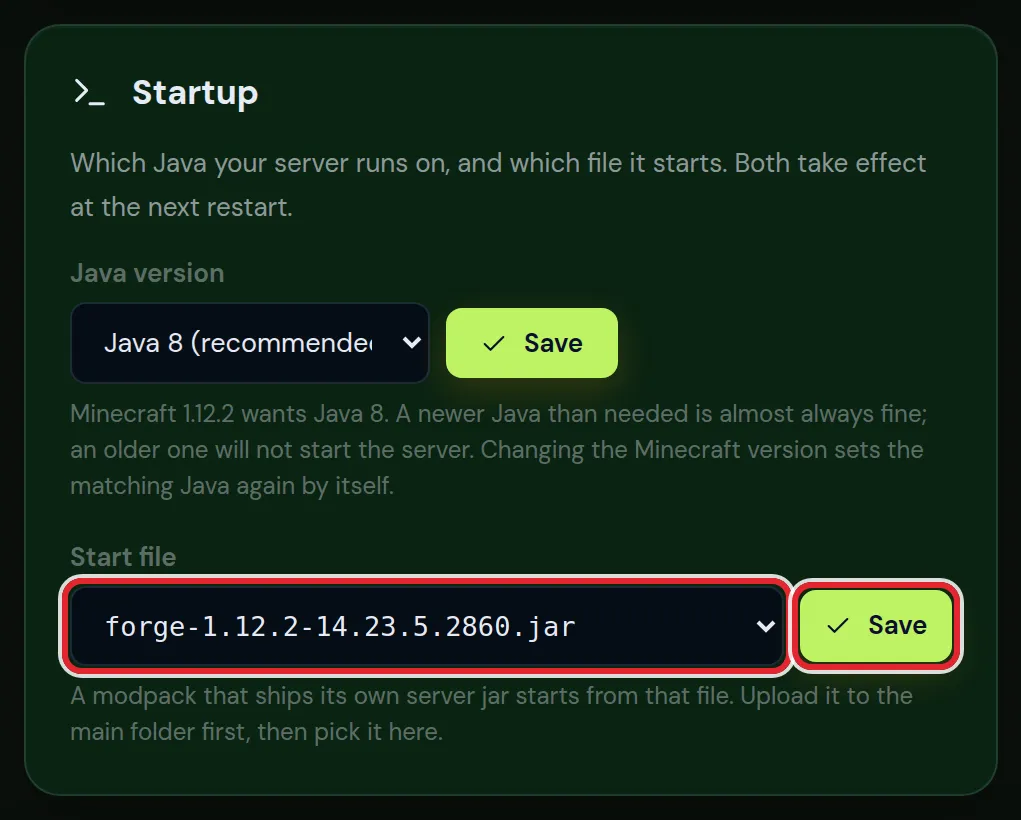
Which files the Start file list accepts
- Only files that end in
.jarand sit in the main folder. - No installers. A file with
installerin its name is left out of the list and refused, because an installer sets up a server and cannot run one. - File names of at most 120 characters before
.jar, made of letters, numbers, spaces, dots, hyphens, underscores, plus signs and brackets. For any other name the card answersPick a .jar file from the main folder.Rename the file in Files first.
When the card says That file is not in the main folder of the server., the file was moved, renamed or deleted after the page loaded. Reload the page and pick it again.
When the start file of a Minecraft server is fixed
Some server types always start from the same file. The card then shows the file name without a list, with the line This server type always starts from the same file.
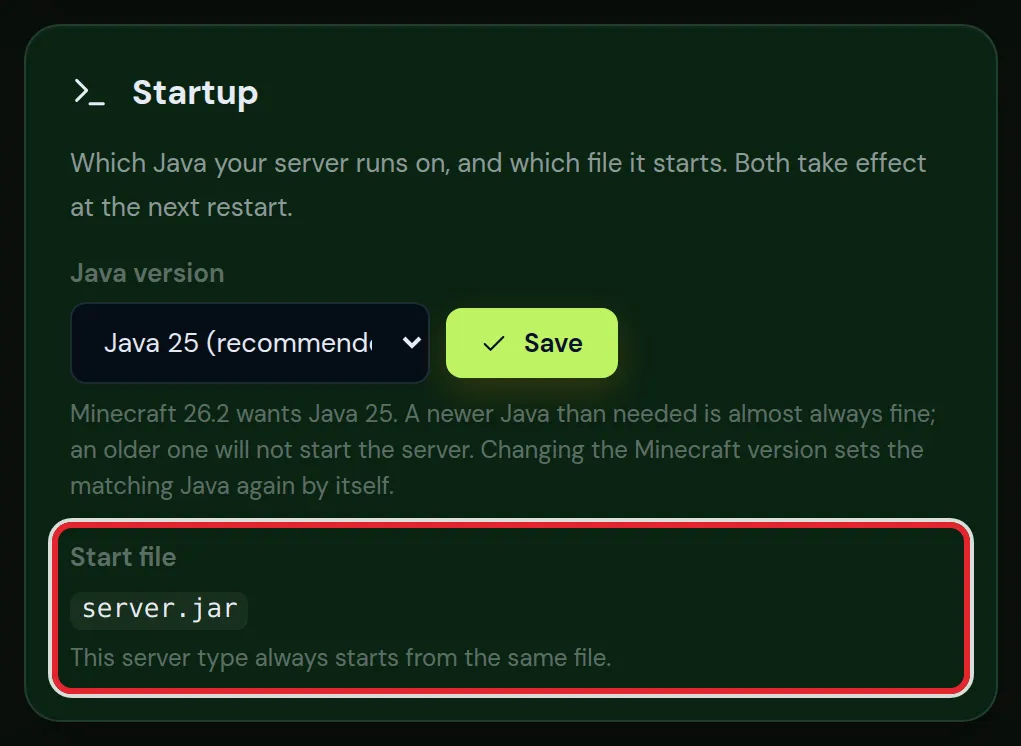
To run other software on such a server, switch the Server type under Server software; the panel then fetches the right file itself. Contact support when you need a start file the panel does not offer. Technical support answers 24/7.
Start a modpack server jar from the Startup card
Most modpacks need no change to the start file. Install the pack from the Mods tab, or set the loader and Minecraft version under Server software, and the panel installs the loader itself. Install a modpack covers both ways.
Some packs, mostly older Forge packs, ship their own server jar in the server files. Those start from that file:
- Set the Java version the pack is made for. Packs on Minecraft 1.16.5 and older run on Java 8.
- Put the pack's files on the server, with its server jar in the main folder.
- Pick that jar under Start file, click Save and restart.
An old Forge folder often holds two jars, such as forge-1.12.2-14.23.5.2860.jar and minecraft_server.1.12.2.jar. Pick the Forge file. The other one is the plain game, which Forge loads by itself; starting it directly gives you a server without mods.
Fabric, Forge or NeoForge explains which loader a pack needs, and join a modded server shows your players how to get the same pack.
What you cannot change at startup: memory and Java flags
The Startup card has no field for memory and none for the start command or Java flags, such as -Xmx or garbage collector options. The panel starts the server with its own command.
Memory follows your plan, and the panel sets it for you. Instructions from a modpack page or a forum that tell you to edit -Xmx or a start.sh file do not apply on our servers.
Does your server need more memory? How much RAM a Minecraft server needs helps you check that first. A move to a larger plan goes through support.
Minecraft server won't start after a startup change
Read the last lines in the Console. These messages point straight at a startup setting:
| Console message | Cause | Fix |
|---|---|---|
UnsupportedClassVersionError | The Java version is older than the server or a plugin needs | Pick the (recommended) Java or a newer one and restart |
Error: Unable to access jarfile | The start file is no longer in the main folder, for example after a rename or delete | Upload the file again or pick another one under Start file |
Error: Invalid or corrupt jarfile | The jar is damaged, often from an upload that did not finish | Upload the file again and restart |
no main manifest attribute | The chosen jar is a library or a mod and cannot start a server | Pick the server jar of the pack |
Nothing changed after Save? Both options only apply at the next start, so restart the server. For errors that are not in this table, work through Minecraft server won't start.
Questions from Minecraft server owners
Where are the startup settings of a Minecraft server?
In our control panel they are in the Startup card on the Settings tab, under Server software. The card holds the Java version and the start file of the server.
Do I need to restart the Minecraft server after changing the Java version?
Yes. A running server keeps the Java it started with. The new Java version is used from the next start, and the same goes for a new start file.
How do I use a custom server jar on my Minecraft server?
Upload the jar to the main folder in the Files tab, pick it under Start file in the Startup card and restart. On a server type with a fixed start file there is no list; contact support in that case.
Why does my jar file not show up under Start file?
The list only shows .jar files in the main folder of the server. A file in a subfolder, a file with installer in its name and a file with another extension are left out.
Can I edit the startup command or JVM flags of my Minecraft server?
No. The panel starts the server with its own command and sets the memory from your plan. The Java version and the start file are the parts of startup you choose.
How do I give a Minecraft server more RAM at startup?
There is no memory field, because the memory follows your plan. Contact support when your server needs a larger plan.
Which Java version should I pick for my Minecraft server?
The one marked recommended in the Java version list, which matches your Minecraft version. Pick another only for a setup that needs it, such as Java 8 for an old Forge modpack.
Checked against the Startup card in the Settings tab of our control panel on Paper for Minecraft Java 26.2 and Forge for 1.12.2, October 2026. Written by the Cheapest Minecraft Hosting team, first published , updated .