
 Astroworld
Troubleshooting
How to secure your Minecraft server: a checklist for owners
Most damage to Minecraft servers comes from a setting left open, an operator who should not have been one, a stolen password or a plugin from an unknown source.
This guide is a checklist in order of impact. Each step takes a few minutes, and the panel does several of the checks for you.
In short
To secure a Minecraft server, keep online mode on, use a whitelist for a private server, give operator level 4 only to yourself, turn on two-factor login for your hosting account, give panel staff only the rights they need, install plugins only from known sources, keep regular backups and keep the server and plugins updated. The Security check card in the Players tab reviews operators, permissions and settings for you.
1. Keep online mode on
Verify accounts with Mojang in Settings, under Access, is the line online-mode=true. It makes every player prove they own the account they join with.
With it off, anyone can join under any name, including the name of an operator, and take over the server from inside the game. The switch carries a warning about this, and when you turn it off the form adds "Account verification is off; player names are not trusted." before you save. The only exception is a server behind a network proxy that checks accounts itself, such as a server network built in the panel.
Leave Require signed chat on as well. It makes sure chat messages come from the account that sent them.
2. Use a whitelist on a private server
A server for friends, a class or a family needs a whitelist. Only listed players get in, whoever learns the address.
- Open the Players tab and click Open whitelist settings on the Server access card.
- Turn on Whitelist and Enforce whitelist immediately, then press Save changes.
- Back in Players, open the Whitelist list and click Add to whitelist for each friend.
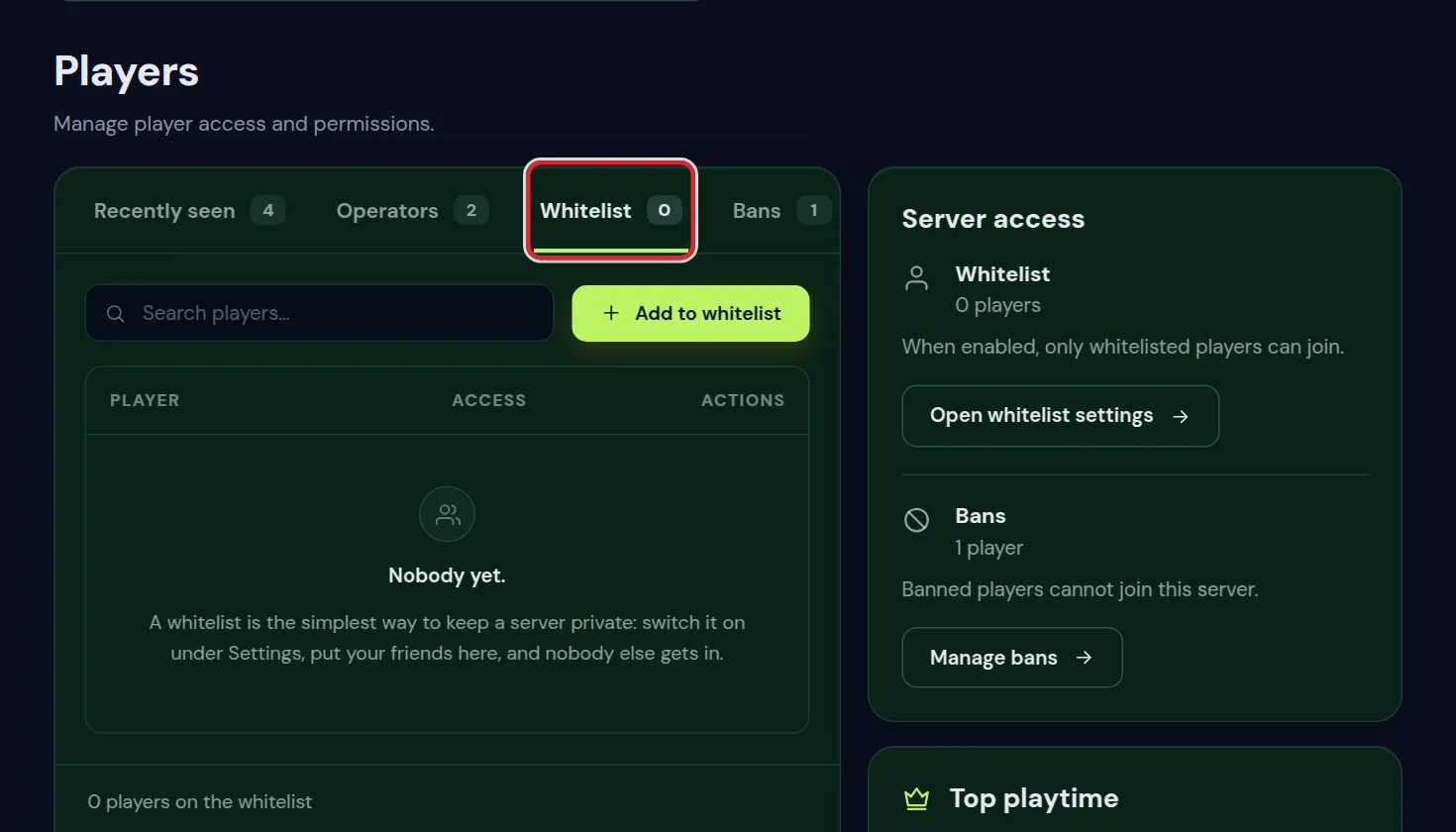
Details, Bedrock names and common mistakes are in whitelist and operators.
3. Give operator rights carefully
An operator with level 4 can stop the server, ban anyone and change every game setting. Only give level 4 to people you trust completely.
| Who | What to give |
|---|---|
| You, the owner | Operator level 4 |
| A trusted co-owner | Operator level 3 or 4 |
| Moderators | A LuckPerms rank with kick, mute and ban commands |
| Builders | A LuckPerms rank with creative or WorldEdit rights |
| Players | No operator rights |
Ranks with LuckPerms give each person only the commands they need, and you can take them away again without touching ops.json. Check the Operators list in the Players tab now and then, and remove anyone who no longer needs it with Remove operator.
4. Turn on two-factor login for your hosting account
Your hosting account controls the files, backups, settings and billing of your server. If someone learns your password, two-factor login still stops them, because they also need the six digit code from your phone.
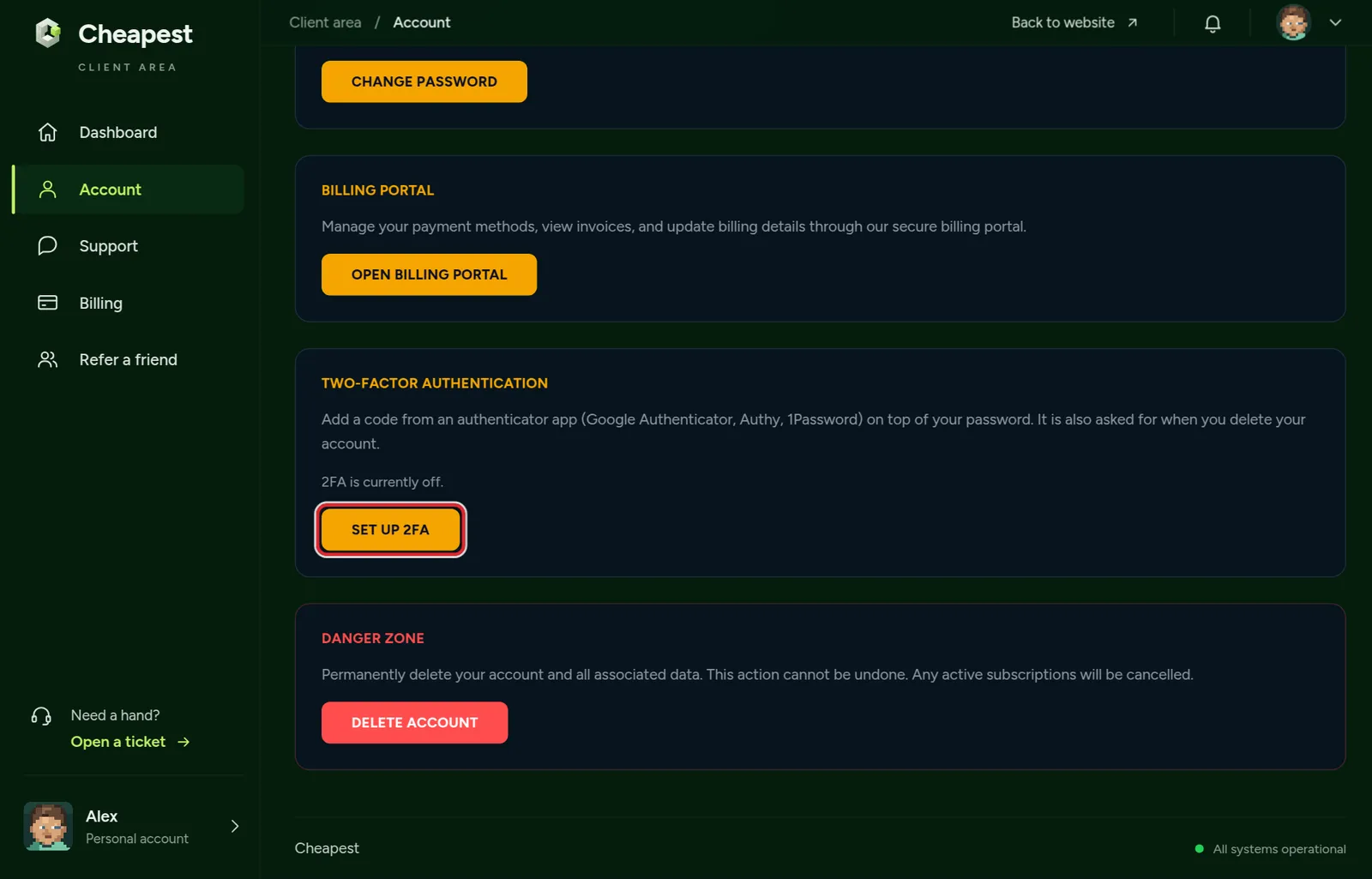
Set it up on the Account page with Set up 2FA, and keep the backup codes somewhere safe. A world reset also asks for the code. Account settings and two-factor login has the steps.
Use a password for your hosting account that you use nowhere else, and keep it to yourself. Give other people their own access, as in the next step.
5. Check who has access to the control panel
People you invite in the Staff tab get their own login and only the rights you tick. Nobody you invite can invite others or touch billing; that stays with you.
- Give a moderator the Moderator role, and keep Co-admin for a real co-owner.
- Give someone who only uploads builds the Builder role.
- Remove people who left the team straight away with Remove in the Staff tab.
- Ask your staff to turn on two-factor login on their own accounts.
Give someone access to your server explains every role and right.
6. Install plugins and mods only from known sources
A plugin or mod runs with full access to your server. A jar from an unknown site can contain code that steals data, adds hidden operators or opens the server to others.
- The Plugin catalog in the Plugins tab installs only reviewed plugins, picks the file for your server type and version, and checks the file before it is put in place. It has no install from a link.
- The Verified Modrinth catalog in the Mods tab does the same for mods.
- Upload a jar by hand only from the plugin's own page on a site you know. Skip files from video descriptions, Discord messages or file sharing sites.
- Remove plugins you no longer use. Fewer plugins means fewer things that can go wrong.
More on where to get plugins in install plugins.
7. Keep the server and plugins updated
Updates fix security problems as well as bugs. Paper and plugin makers fix exploits, such as ways to crash a server or duplicate items, in new builds.
- The Updates card at the top of the Plugins tab shows an Update button when a newer build of a plugin the panel can follow is out. Check again looks once more.
- Change the Minecraft version in Settings under Server software; the panel makes a backup first. See change your Minecraft server version.
- After an update, read the Console at the next start for plugins that fail to load.
8. Make backups you can restore
A backup saves you when everything else fails: a griefer with operator rights, a broken plugin, a mistake in a config file.
- Make a backup in the Backups tab before every big change.
- Download an important backup now and then, so you also have a copy outside the server.
- Test a restore once, so you know how it works before you need it.
Back up and restore your server covers automatic backups and restoring.
9. Run the Security check in the Players tab
The Players tab has a Security check card: "Review operators, permissions and server configuration with Copilot." Click Check with Copilot and the AI Copilot looks at your operators, permission setup and settings, and tells you what to fix.
In the Settings tab, a strip above the Access group offers the same with Check my security with AI. When account checking is off, that strip says so straight away.
10. Protect the world against griefing
Security also means limiting what players can do once they are in. Land claims stop players from breaking each other's builds, and a block logger shows who did what and rolls it back.
Stop griefing covers GriefPrevention, CoreProtect and WorldGuard. The Activity tab of the panel shows what changed on the server and who did it; see what changed on your server.
Questions from Minecraft server owners
How do I make my Minecraft server private?
Turn on the whitelist and add only the players you know. Keep online mode on, so nobody can pretend to be one of them.
Is it safe to turn off online mode?
Only when the server sits behind a proxy that checks accounts itself. With online mode off, anyone can join under any name, including yours.
Who should be operator on my Minecraft server?
Only you at level 4, and maybe one co-owner. Give moderators and builders a LuckPerms rank with the commands they need.
Can a plugin be dangerous?
Yes. A plugin runs with full access to the server. Install from the panel's catalog or from the plugin's own page on a known site, and remove plugins you do not use.
What does the Security check in the Players tab do?
It asks the Copilot to review your operators, permissions and server settings and point out what is open that should be closed.
Someone got operator rights who should not have them. What now?
Remove them with Remove operator in the Players tab, ban them if needed, check the Activity tab and roll back damage with CoreProtect or a backup.
Checked against the Players, Settings, Staff and Plugins tabs of our control panel on Paper for Minecraft Java 26.2, October 2026. Written by the Cheapest Minecraft Hosting team, first published , updated .