
 Astroworld
Troubleshooting
How to read Minecraft server logs and find the first error
A Minecraft server writes down everything it does: each start, each player who joins, each command, warning and error. When something goes wrong, the reason is almost always in those lines.
This guide covers where the log files are, how to open them in the control panel and how to read a log line and a Java error. For the fixes per problem, go to Minecraft server won't start or Minecraft server keeps crashing.
In short
Minecraft server logs are in the logs folder in the Files tab: latest.log holds everything since the last start, and older runs are packed into .log.gz files with the date in the name. The live log is in the Console tab, with a search box and a level filter. To find the cause of a problem, go to the time it went wrong, read upward to the first WARN or ERROR line, and read the stack trace under it for the name of a plugin or mod.
Where Minecraft server logs are stored
All log files are in the server folder, which you open in the Files tab. These are the ones that matter:
| File | What is in it |
|---|---|
logs/latest.log | Everything since the server last started |
logs/2026-10-11-1.log.gz | An older log, packed. The date is the day it was written; the number counts the files of that day |
logs/debug.log | Forge and NeoForge only: a longer log that also holds DEBUG lines for mod developers |
crash-reports/crash-2026-10-11_17.42.08-server.txt | One report per crash, named after the date and time. The folder appears after the first crash |
A file starting with hs_err_pid in the top folder | Written by Java itself when the Java program crashed. This is rare |
Minecraft starts a new latest.log at every start of the server, and when the date changes while it runs. The previous file is packed into a .log.gz file with its date in the name, so every run and every day has a file of its own.
Read the live Minecraft log in the Console tab
The Console tab shows the log while the server writes it and keeps the last 2,000 lines in view. The bar above the log has these controls:
| Control | What it does |
|---|---|
| Search logs... | Shows only lines that contain what you type, such as a player or plugin name |
| All levels, Info, Warnings, Errors | Shows only the lines of one level |
| Clear | Empties the view. The log files on the server stay as they are |
| Download button next to Clear | Saves the lines in the console as a .txt file on your computer |
| Auto-scroll | Keeps the newest line in view. It switches off when you scroll up |
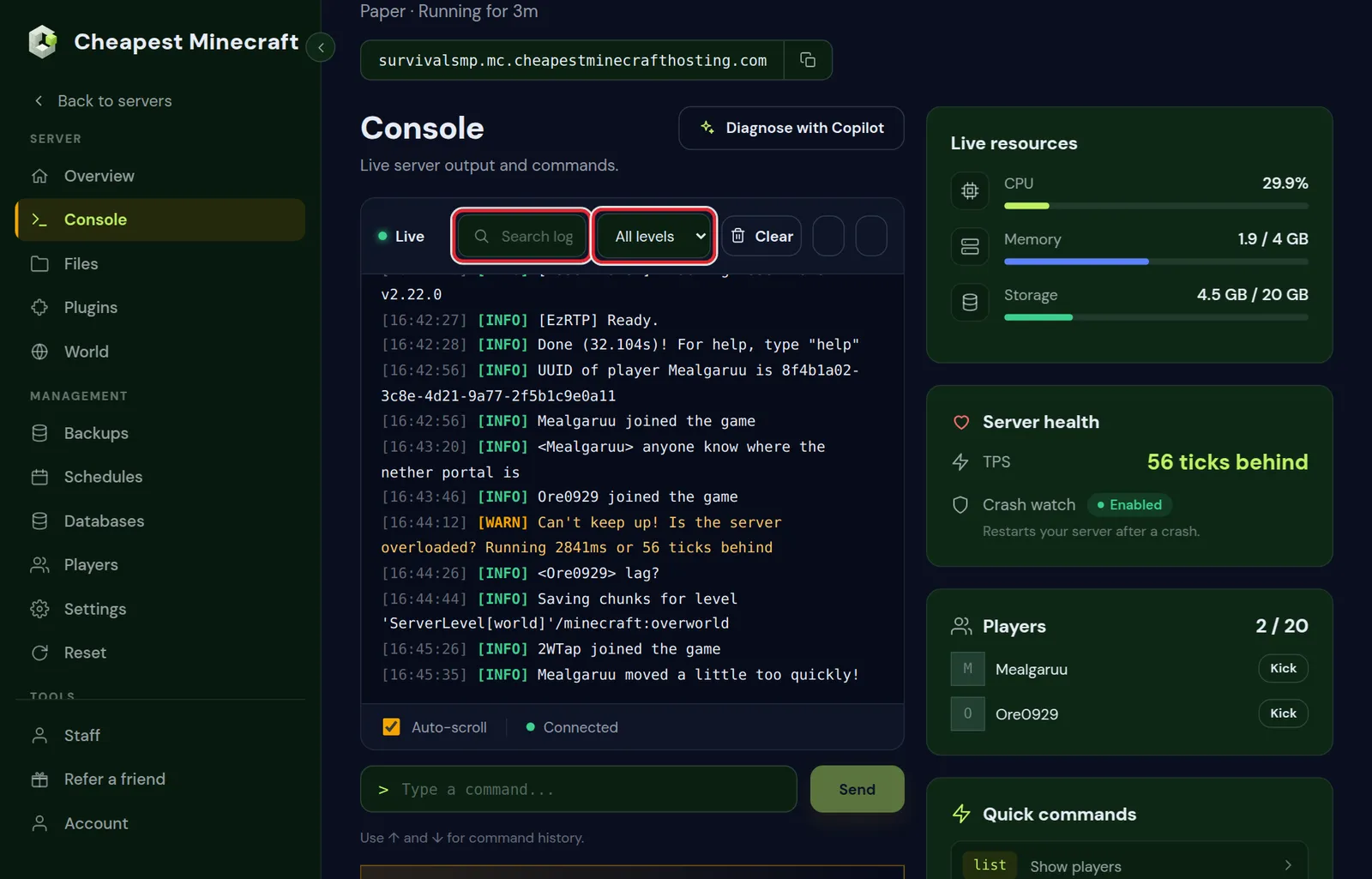
The Errors filter keeps only lines with ERROR in them. The at lines of a stack trace under an error carry no level, so the filter hides them. Use the filter to find the error and its time, then switch back to All levels and scroll to that time to read the whole block.
When the server is offline, the console can stay empty or show only part of the last run. The complete log of that run is in logs/latest.log.
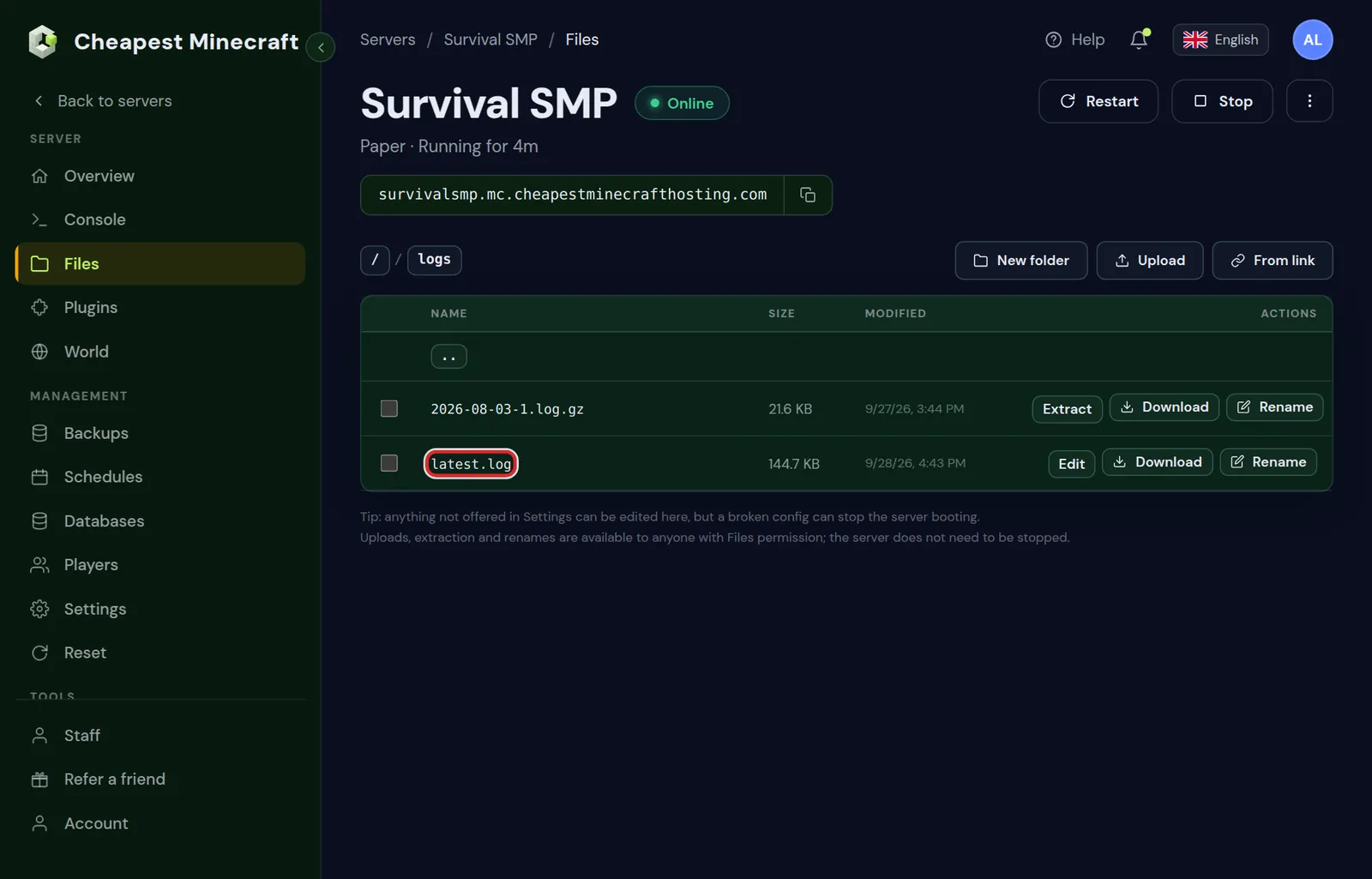
Open latest.log and older Minecraft logs in the Files tab
- Open the Files tab and click the
logs/folder. - Click Edit next to
latest.logto read it in the panel. Close it with Cancel; a log needs no saving. - For an older day, click Download next to its
.log.gzfile and unpack it on your computer. 7-Zip does this on Windows, and a double click does it on a Mac. - Crash reports are in the
crash-reportsfolder in the top folder. Open them with Edit as well.
The editor shows up to about 2 MB of a file. A bigger log opens with the note Shown truncated, saving would cut the file, download it instead. and shows only the start, without the newest lines at the end. Download such a file and open it on your computer.
To find what a player said, the Chat history card under the console searches these files up to 14 days back; see search the chat history of your Minecraft server.
How a Minecraft server log line is built
[17:42:08] [Server thread/INFO]: Steve joined the game| Part | Example | Meaning |
|---|---|---|
| Time | [17:42:08] | Hour, minute and second on the server's clock. The date is in the file name |
| Thread | Server thread | The part of the server that wrote the line. Server thread is the main game loop |
| Level | INFO | How serious the line is, see the table below |
| Message | Steve joined the game | What happened. Lines from a plugin start with its name in brackets, such as [LuckPerms] |
The Console tab shows each line as time, level and message, without the thread. Fabric, Forge and NeoForge also write the name of the mod or class behind each line, and Forge and NeoForge put the date before the time.
| Level | Meaning | What to do |
|---|---|---|
INFO | Normal activity: starts, joins, chat, saves | Nothing |
WARN | Something is off, but the server carries on | Read it when you look for a problem. Many warnings are harmless |
ERROR | Something failed, such as a plugin task or loading a file | Read it together with the lines under it |
FATAL | The server cannot carry on and stops | This line, or the error just above it, is the cause |
How to find the first error in a Minecraft log
One problem often sets off a chain of errors. The first one in the chain is the cause, and the ones after it follow from it. To find it:
- Note when the problem happened: the time of the crash, the lag or the player report.
- Open the log of that moment:
latest.logfor the current run, or the.log.gzfile of that day. - Go to that time and read upward to the first
WARNorERRORline before it. - Read that line and the lines under it. A plugin or mod named there is the first suspect.
- For a server that fails at startup, read
latest.logfrom the top down instead. The first error you meet is the one that counts.
Repeated lines are a clue too. The same warning hundreds of times a minute points at one plugin, farm or entity that keeps failing.
A log that ends without Stopping server and Saving worlds means the server did not stop normally. Read the last lines before the end; they show what it was doing when it stopped.
How to read a Java stack trace in a Minecraft log
Under many errors is a block of lines that start with at. That block is a stack trace: the path through the code at the moment something failed. An example from a Paper server:
[17:42:08] [Server thread/ERROR]: Could not pass event PlayerInteractEvent to ExamplePlugin v2.1.0
java.lang.IllegalStateException: Could not open the shop menu
	at com.example.plugin.ShopMenu.open(ShopMenu.java:112) ~[ExamplePlugin-2.1.0.jar:?]
	at com.example.plugin.ClickListener.onClick(ClickListener.java:48) ~[ExamplePlugin-2.1.0.jar:?]
	at io.papermc.paper.plugin.manager.PaperEventManager.callEvent(PaperEventManager.java:54) ~[paper-26.2.jar:?]
Caused by: java.lang.NullPointerException: Cannot invoke "String.length()" because "name" is null
	at com.example.plugin.ShopConfig.getItemName(ShopConfig.java:31) ~[ExamplePlugin-2.1.0.jar:?]
	at com.example.plugin.ShopMenu.open(ShopMenu.java:108) ~[ExamplePlugin-2.1.0.jar:?]
... 2 more- The first line says what the server was doing: passing a player's click to ExamplePlugin.
- The exception line names the kind of error and gives a short message.
- The `at` lines read from the top down, and the top one is where it failed. The first
atline that does not start withnet.minecraft,org.bukkit,io.papermcorjava.belongs to the plugin or mod at fault. On modded servers,net.fabricmc,net.minecraftforgeandnet.neoforgedbelong to the loader as well. - The jar name at the end of a line, here
ExamplePlugin-2.1.0.jar, names the plugin file on Paper. - `Caused by:` is the error behind the error. With several of them, the last one is usually the real cause; here a missing name in the shop config.
- `... 2 more` means the remaining lines are the same as in the block above.
When you report an error to a plugin author, a mod author or us, copy the whole block, from the line with ERROR down to the last at line.
Common Minecraft log errors and what they mean
| Error in the log | What it means | What to do |
|---|---|---|
NullPointerException | A value was missing, often an empty or wrong setting in a config file | Check the config of the plugin or mod in the stack trace, then update it |
ClassNotFoundException or NoClassDefFoundError | A plugin or mod looks for code that is not on the server | Install the plugin or mod it depends on, or a version made for your Minecraft version |
NoSuchMethodError or NoSuchFieldError | A plugin or mod was built for another version of the game or of a plugin it uses | Update it and the plugin it depends on |
ConcurrentModificationException | Two parts of the code changed the same data at once | A bug: update the plugin or mod in the stack trace and report it |
InvalidConfigurationException, while scanning or mapping values are not allowed here | A .yml config file has a typo, such as a tab instead of spaces | Open the file named in the error and fix the line it gives |
JsonSyntaxException or MalformedJsonException | A .json file has a typo, such as a missing comma or quote | Find the file name near the error, then fix the file or restore it from a backup |
OutOfMemoryError | The server ran out of memory | See how much RAM a Minecraft server needs |
UnsupportedClassVersionError | The server or a plugin needs a newer Java | See which Java version Minecraft needs |
Read the text after the exception name as well. A file name or a message such as because "name" is null points at the setting or file to check.
Normal Minecraft log lines and what they tell you
Most of a log is normal activity. These lines answer everyday questions about the server:
| Line in the log | What it tells you |
|---|---|
Starting minecraft server version 26.2 | A new start begins here, with the Minecraft version |
[ExamplePlugin] Enabling ExamplePlugin v2.1.0 | A plugin started, with its version. A plugin that is missing from these lines did not load (Paper and Spigot) |
Done (12.345s)! For help, type "help" | The server finished starting and players can join |
UUID of player Steve is and an ID | A player is logging in, with the ID of their Minecraft account |
Steve lost connection: Timed out | The connection dropped. The text after the colon is the reason |
Steve issued server command: /home | A player typed a command (Paper and Spigot) |
[Steve: Set the time to 1000] | An operator ran a command; the text is the result |
Steve was slain by Zombie | A death message, the same one players see in chat |
Named entity followed by died: | A mob with a name tag died. The line holds its position, which helps when a pet goes missing |
Steve moved too quickly! | A player or vehicle moved faster than the server expected, often during lag or fast flight |
Plugin ExamplePlugin v2.1.0 generated an exception while executing task 42 | A timed task of that plugin failed; the stack trace under it says where |
Can't keep up! Is the server overloaded? Running 2841ms or 56 ticks behind | The server fell behind. Once at startup is normal; often means lag, see reduce lag |
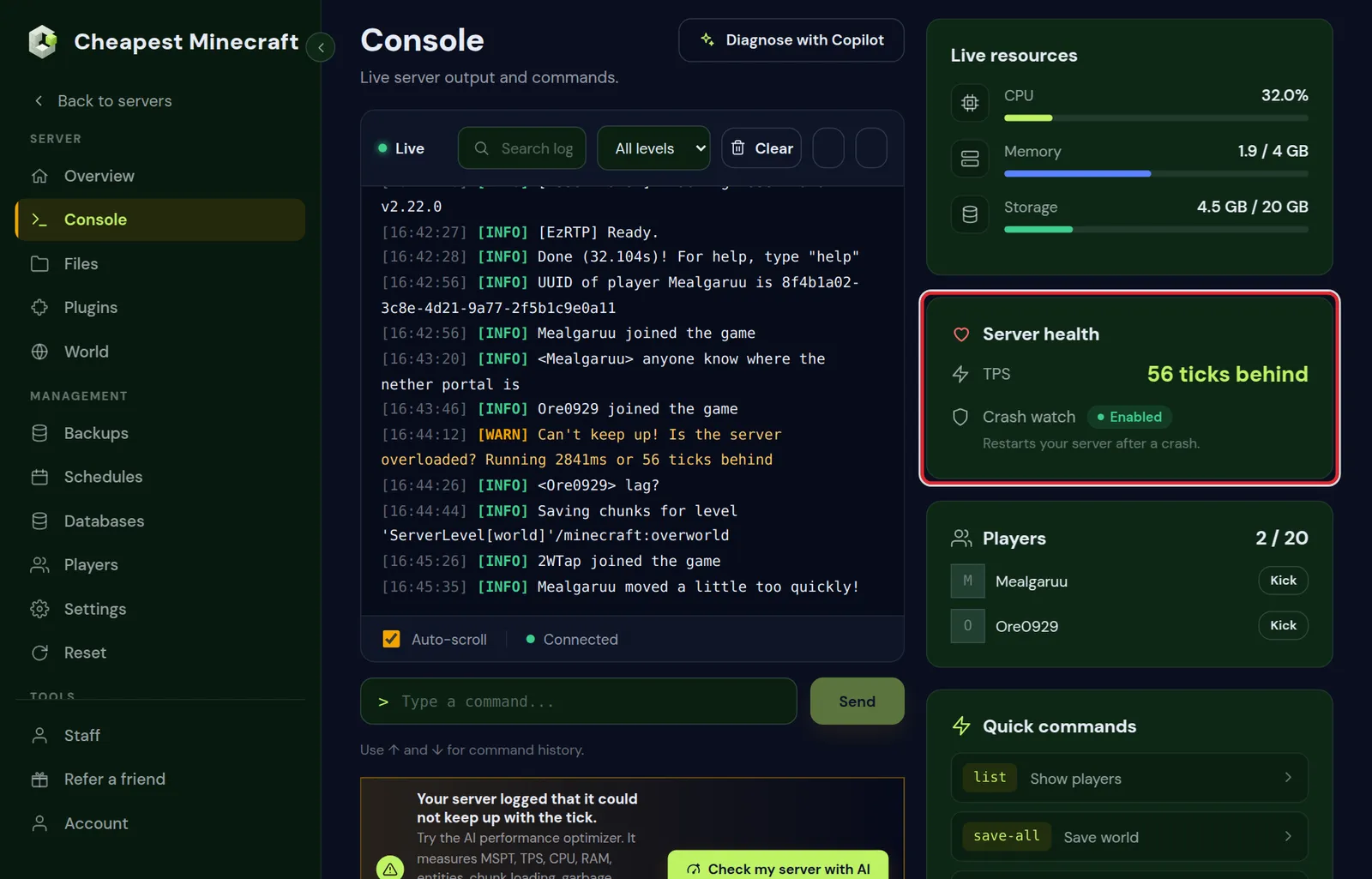
The panel reads the Can't keep up! line too. For five minutes after one appears, the Server health card next to the console shows how many ticks the server was behind.
Read a Minecraft crash report
A crash report is a .txt file in crash-reports. It starts with ---- Minecraft Crash Report ---- and has these parts:
| Part | What it tells you |
|---|---|
Time: | When it crashed, to find the same moment in the log |
Description: | The kind of crash in a few words |
| The stack trace under the description | Where it failed, read as shown above |
-- Affected level -- and parts such as -- Entity being ticked -- | Which world, and for a failing entity or block its position |
-- System Details -- | The Minecraft version, the Java version, the memory and, on modded servers, the list of mods |
Minecraft server keeps crashing has a table of the common descriptions with the fix for each one.
Crash watch also reads the log after a crash. When it recognises the cause, the Server health card in the Console tab shows Why it crashed last time: the cause in plain words, the steps to take and the log line it is based on.
Questions from Minecraft server owners
Where are Minecraft server logs stored?
In the logs folder of the server, which you open in the Files tab. latest.log is the current run, and older runs are packed as .log.gz files with the date in the name.
How do I open a .log.gz file from my Minecraft server?
Download it in the Files tab and unpack it on your computer, with 7-Zip on Windows or a double click on a Mac. Inside is a plain text file that any text editor opens.
Can I delete old Minecraft log files?
Yes. Select them in the logs folder of the Files tab and delete them. They are gone straight away, with no bin to get them back from, and the chat history can no longer search those days.
What is the difference between a Minecraft log and a crash report?
The log records everything the server does, line by line. A crash report is only written when the server crashes, and describes that one crash in detail together with the system details of the server.
Can I let someone else read my Minecraft server logs?
Yes. Give them the Console permission for the live log and the Files permission for the log files. Give someone access to your server explains how.
Checked against the Console and Files tabs of our control panel on Paper for Minecraft Java 26.2, October 2026. Written by the Cheapest Minecraft Hosting team, first published , updated .